MY PROJECTS
A showcase of my recent work across bot development, web apps, and modding.
# 01. BOT DEVELOPMENT
View all (20) →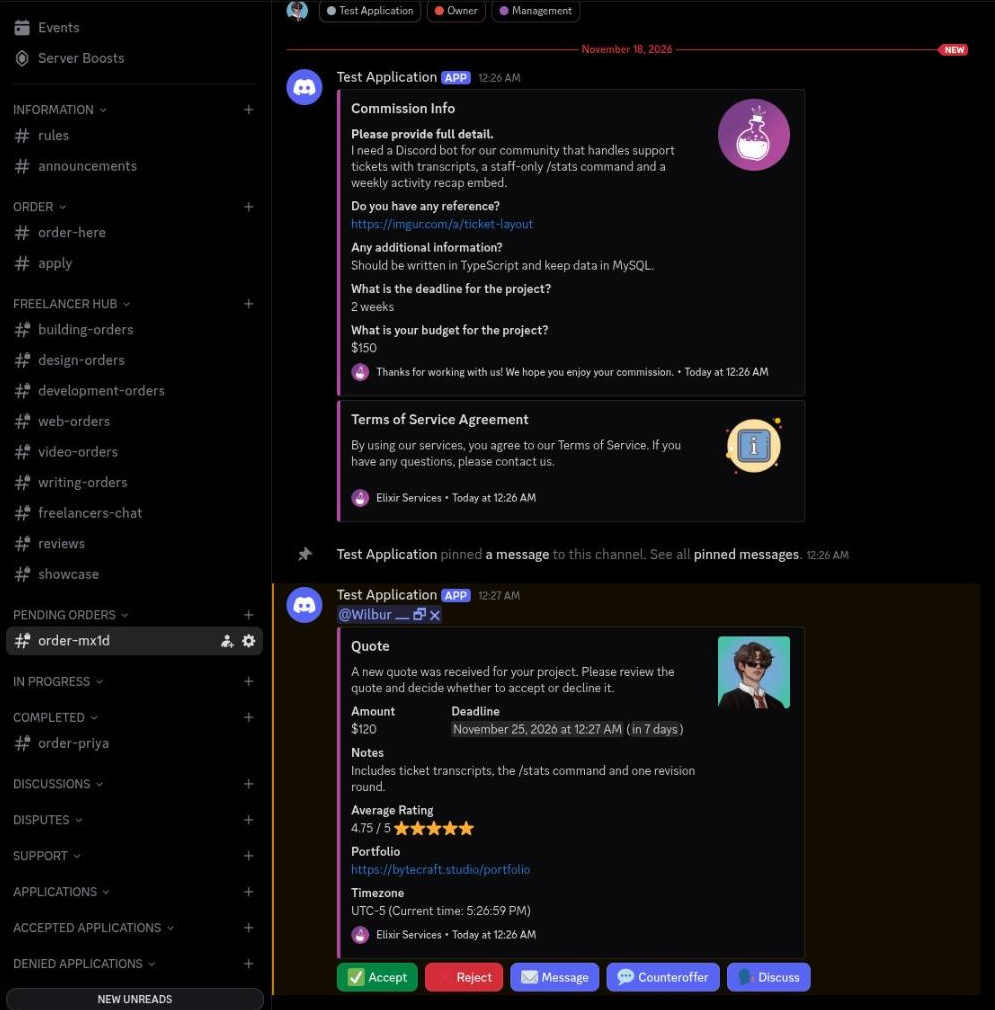
Commission Desk
Commission Ticket - Private channel named order-mira, created for the client when the order form is submitted. - Commission Info embed lists the answers as fields, with the long detail answer promoted to the description. - Terms of Service Agreement embed is posted directly under it. - Quote embed shows amount, deadline, notes, average rating, portfolio and timezone. - Quote buttons: Accept, Reject, Message, Counteroffer and Discuss. Quote Accepted - Quote Accepted embed records freelancer, client, commission channel, amount and deadline. - Invoice Created embed lists invoice ID, freelancer, client, price, fees and payment status. - Fees are calculated as 8% of the amount plus a fixed $0.49. - Pay Now link button opens the PayPal invoice for the client. Order Form - Modal titled Order Form, opened once a department and a specialty have been chosen. - Five required inputs: full detail, reference link, additional information, deadline and budget. - Deadline and budget are single line fields; the other three accept paragraphs. - The answers become the fields of the Commission Info embed in the new ticket channel. Freelancer Panel - Department channel where every new order is mirrored for the freelancers of that department. - Same Commission Info embed, with Quote, Notifications, Message, Discuss and Client Reviews buttons. - Quote opens the amount, deadline and notes modal; the bot confirms with a private Quote sent message. - Notifications subscribes the freelancer to the order so they hear when another freelancer claims it. Freelancer Profile - Profile embed for a freelancer: user, description, timezone with the current local time, availability, portfolio, amount made and average rating. - The rating line carries the score, the stars and the number of reviews. - Edit Profile button is only shown to the profile owner. Withdrawal Requests - Staff only channel where a payout request is raised once a commission has been reviewed. - The request embed shows amount, commission channel, requester and the PayPal address on their profile. - The amount is the paid amount minus the 15% server cut. - Approve, Deny and Get PayPal buttons; approving edits the message to Withdrawal Approved and clears the buttons. Order Panel - The order-here channel with the pinned order panel posted by the bot. - The panel carries a single Order button, with the footer stating that creating a ticket accepts the Terms of Service. - Pressing Order replies privately with the Terms of Service embed and an Accept button. - Accepting opens the department picker: six departments in one select menu, each with its own emoji and role.
Staff Payroll
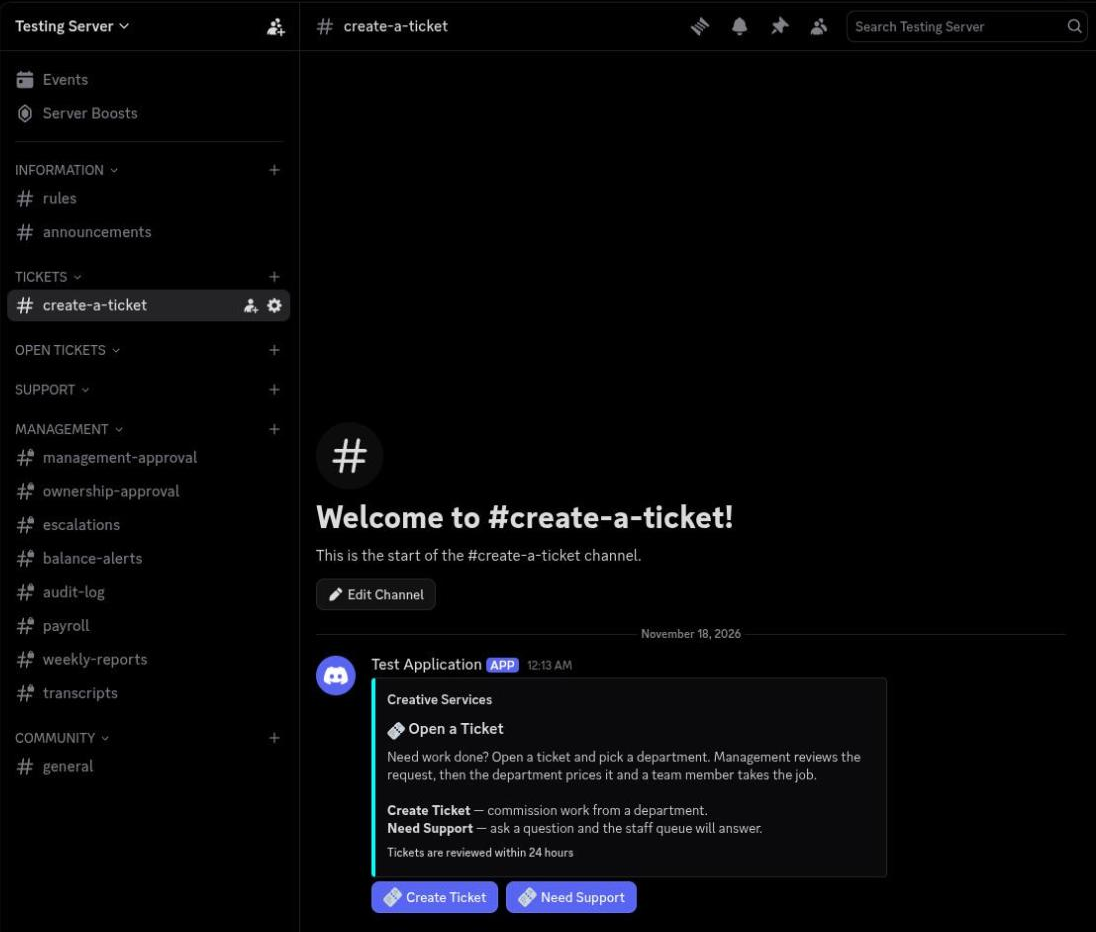
Ticket Panel - The create-a-ticket channel with the pinned panel posted by the bot. - The panel text is stored per server and rendered from the saved embed, so each department server can word it differently. - Two buttons: Create Ticket and Need Support, both opening a ticket flow. - Support tickets take a single question and land in the support queue instead of a department. Ticket Request - The ticket flow runs as one embed that updates in place while the requester answers, inside a five minute timeout. - The header keeps department, sub department, priority and deadline visible while the questions are answered. - Answered questions stay listed above the question currently being asked. - Back, Restart and Skip navigate the flow; the last step is a confirmation screen with Confirm Ticket, Go Back and Restart Ticket. Management Approval - Every submitted ticket is posted to the management channel with the department, ticket channel and priority. - Each question and answer is repeated as a field so management can price the work without opening the ticket. - Approve and Deny buttons; approval passes the ticket on to ownership, denial closes it with a reason. - Department review follows the same pattern once management has signed off, with Approve, Questions and Deny. Payroll Approval - Payroll is submitted per pay period and posted to the payroll channel for management. - The summary shows pay period, status and payday, then gross earnings, total deductions and net pay. - The deduction breakdown lists retainage at 20%, missed weekly reports at 5% each and late penalties. - Each project is itemised with its base amount, retainage, report and late deductions, and the net for that project. - Approve and Deny buttons; approving notifies the worker with their net pay and project count. Department Statistics - Per department totals: open tickets, completed tickets and total tickets. - Average completion time in days and total costs billed for that department. - The same command family covers global stats and a per worker quarterly view with earnings, retainage and strikes. Weekly Report - Posted to the weekly reports channel each time a worker submits, with the week range and submission time. - Counts the projects worked on and summarises how many sat in each stage. - Each project gets its own field with the stage emoji and the worker's notes. - Reports are due Sunday 23:59; a missed report adds 5% retainage to that worker's pay for the quarter.
Server Wallet
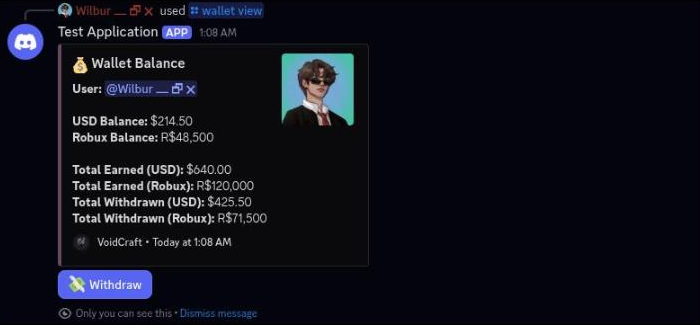
Wallet Balance - Private wallet view for a freelancer: USD balance, Robux balance, total earned and total withdrawn for both currencies. - Robux is shown as R$ with thousands grouping, USD as $ with two decimals. - A Withdraw button is only attached while the wallet holds a balance. - The wallet keeps running totals only; there is no transaction history list. Withdraw Funds - Balance picker that opens when Withdraw is pressed, showing both balances before choosing a currency. - Withdraw USD and Withdraw Robux buttons lead to separate modals. - The USD modal is titled Withdraw USD and caps the amount to the current USD balance in the field label. - The Robux modal asks for the amount and the Roblox username. Withdrawal Requests - Staff channel where every wallet withdrawal lands for approval. - The request embed shows amount, currency type, requester, the payout address on their profile and the balance left after the request. - Approve, Deny and Get PayPal buttons; approving edits the message to Withdrawal Approved and removes the buttons. - Robux withdrawals post a separate embed with the Roblox username and remaining Robux balance, ping the management role and only offer Approve and Deny. Payment Methods - Posted in the commission ticket once a quote is accepted: amount due, freelancer and deadline. - Three payment buttons: PayPal, Robux and Pay with Balance. - Choosing Pay with Balance opens a private follow up showing the amount due next to both wallet balances. - The balance sub-picker only offers a currency the wallet can cover. Robux Payment - Robux payments are handled by hand, so the request goes to the management channel with the client, commission, USD amount and the estimated Robux total. - The estimate converts the amount due at the configured Robux exchange rate. - Management confirms with Confirm Payment or drops it with Cancel. - Confirming records the Robux actually received and posts a paid notice into the commission channel. Dispute Panel - A dispute opens its own channel named after the client, with the reason, both parties, the commission, the total paid and the deadline. - The first message carries Post Reply, Handle Dispute, View Channel and Close Dispute; Post Reply stays disabled until staff take the case. - Handling the dispute posts who is mediating it. - Each reply gets Agree, Disagree and Request Evidence buttons so both sides can mark up the other's statement. Affiliate Program - Private affiliate summary for a freelancer: referral invite link, number of invited clients, cut percentage and earnings so far. - Cut defaults to 2% and is paid on top of the freelancer's own earnings when a referred client completes a commission. - Earnings are credited to the wallet and announced in a direct message.
Moderation Suite
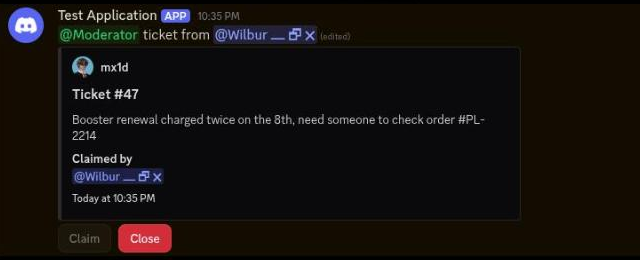
Dashboard - Control panel home for the bot: bot status, ping, CPU, memory and disk cards with a 24-hour view selector. - System health and member activity charts plot CPU/memory/disk/ping and members/joins/leaves/messages over time. - Recent errors section links into the error log, and the sidebar reaches every module's settings. Auto Moderation - Hub for the bot's four message-safety layers: Discord's built-in automod actions, advanced rule-based automod, Join Guard and thread-notification cleanup. - Each layer gets its own configuration page behind the card. Moderation - Case management for bans, kicks, mutes and warns, plus the server's user report configuration. - Staff limitations, tickets, the deletion log and punish settings default values per action hang off the same hub. Raid Protection - Safety setup in the style of Discord's own: raid detection, new member verification via Join Guard, emergency response, alerts and exemptions. - Each protection shows its current state on/off, configured count with review and edit entry points. - A panic command locks the server down: joining blocked and moderator actions and role gains suspended until lifted. Roles - Role automation hub with tabs for join roles, reaction roles, role connections and sticky roles. - Join roles support a default delay, waiting for Discord rules screening, and syncing roles to members already in the server. Levels - XP configuration: per-message XP range, cooldown, minimum message length and a 10-message spam-pattern filter. - Channel, role and member filters decide where XP counts, alongside level rewards and XP logs tabs. Logging - Per-type logging configuration grouped into categories such as applications, channels, Discord AutoMod, emojis and events. - Bulk actions set or remove a channel for all types at once, with mass edit for individual overrides. Welcome Messages - Join, leave, boost and role-assignment message configuration, each with its own template and target channel. Profile Checker - Profile checks configured as saved conditions over member names, bios, pictures, banners, status text, pronouns and connected domains. - Conditions share the same moderation actions as message checks and are gated behind explicit enablement. Tickets - Ticket lifecycle in Discord: opened embed with topic and open time, claim and close buttons for staff. - On close the bot records who closed it, how long it stayed open and where the transcript was saved. Automod Action - Message tripped the invite-links and mass-pings rules; the member gets a notice explaining what was removed and the timeout applied. - The bot posts the resulting case with target, duration and the log channel it was recorded in. - Moderators can let the automatic action stand without further work. Confessions - Anonymous confessions queue into a staff review channel with an auto-screen result before anything posts. - Approve, Deny and Report buttons act on the submission; the author gets a confirmation once it is live. - Approved confessions post to the public channel stripped of any author information.
Debate Arena
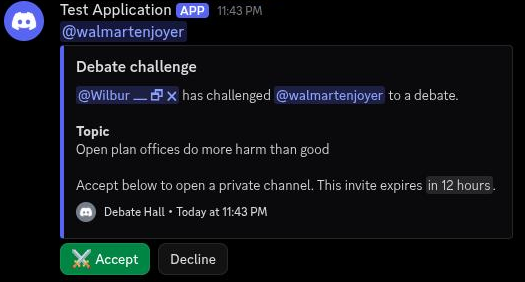
Challenge Invite - The /challenge command posts the invite embed with challenger, opponent, topic and expiry as a relative timestamp, pinging the opponent. - Accept and Decline buttons; accepting opens a private debate channel, declining posts the refusal with the topic. - An ephemeral confirmation tells the challenger the invite was sent. Debate Panel - The private debate channel, named debate-{id} after the debate, carries the topic as its channel topic. - The panel embed lists both debaters and states that ending the debate requires both sides to agree. - End debate starts the close flow; Request to spectate lets a non-participant ask the debaters for access. - Debate turns appear as normal messages below the panel. Spectator Request - /discussion spectate posts a Spectator request embed in the debate channel, pinging both debaters and naming the requester. - Let them in and Decline buttons; either debater or a staff member can decide. - An ephemeral reply confirms the decision to the requester and notes they will be asked to vote when the debate closes. Spectator Ballot - When a debate closes, the channel posts the Debate closed embed with the reason and the voting window. - Approved spectators get an ephemeral ballot: a winner page with a select menu, per-debater rating pages scored 0 to 10 per category, and a review page. - Back, Next and Submit ballot buttons navigate the pages; answers can be changed until submit. - Rating categories come from the server config; the ballot walks through both debaters before the review. Player Card - The /card embed shows wins, losses and draws over the total debates, win rate, streak and current Elo. - Average spectator ratings per category are listed under the record. - Elo starts at 1000 and moves by a K-factor of 32 after each rated debate. Punish Menu - /punish opens a tier select: verbal warning, formal warning, mute C3 to C6, decided by the duration entered, server restriction, temporary ban and permanent ban. - Picking a tier opens a modal for the reason and, for mutes and tempbans, the duration. - The issued punishment is posted as a {tier}: {label} embed with reason and duration, and the case is logged. Debate Summary - The vote result embed first: winner, per-debater average ratings, the tally and the ballots cast. - /summary posts an AI transcript summary titled Summary: {topic} with sections for the topic, each debater's case, sources cited, key clashes and conduct. - The summary stays neutral and does not declare a winner; the result comes from the spectator vote.
Algo Recap
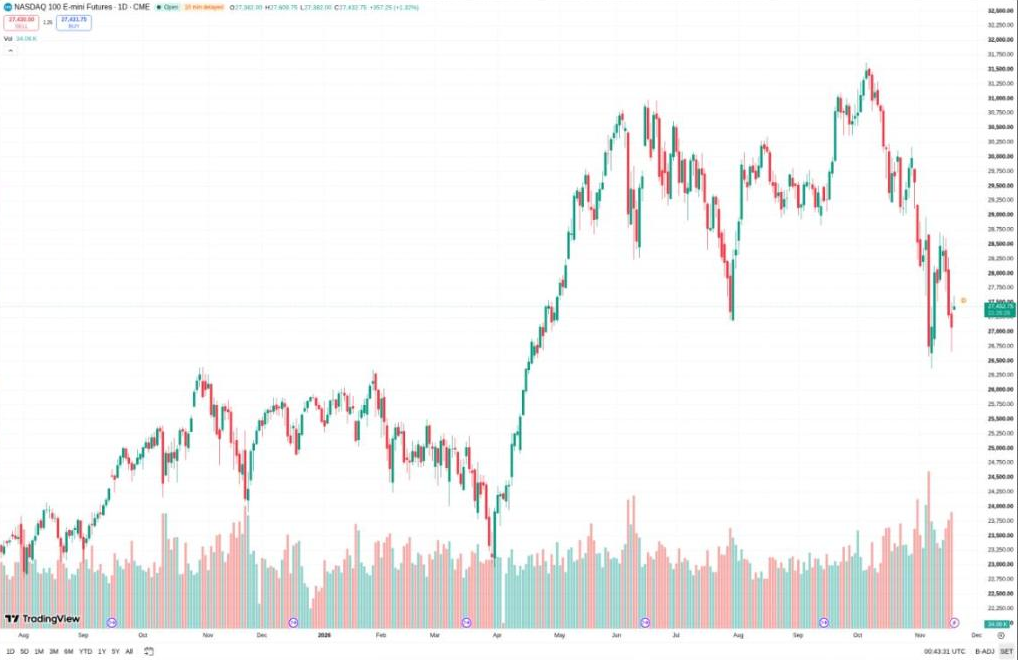
Algo Chart Request - A member asks in futures and runs /algo; the bot replies in the same channel with the chart rendered on a dark card. - The card carries the symbol, the last price, and the moving averages drawn over the candles. - The red candle above the 100 SMA is the setup being discussed in the replies underneath. Auto Algo Chart - The same chart posted on a schedule rather than on request, so the channel fills without anyone asking. - Auto-posts are keyed to a symbol list and a time, and land in the channel they were configured for. - The 200 SMA is the level being watched; the algo flips short on a close below it. Weekly Recap - /recap weekly aggregates every trade logged that week and renders the summary as an image. - The card shows the win/loss split, net points, and the best and worst labelled setup. - A green week here, with the breakout label carrying most of the result. Trade Logged - /recap insert logs a single closed trade and replies with a per-trade confirmation. - Each card carries symbol, direction, entry, exit, points, PnL, and the setup label the trade was tagged with. - Wins and losses use the same layout so a run of trades reads as one sequence. Daily Recap - /recap daily rolls the day into one embed: trade count, wins, losses, breakeven, total and average PnL. - Every trade is then listed inline with its symbol, direction, entry and exit, so the day can be audited line by line. - Five trades on the day, called here. Premarket Scrape - /scrape time set schedules a premarket board to post into premarkets at 08:45 on weekdays. - /scrape time view lists every scheduled scrape with its channel, time, and day set. - The board drops fifteen minutes before the bell, without anyone running a command. Futures Recap Card - The rendered weekly recap card on its own, at full size. - Candles and moving averages on the left, the PnL distribution and win rate on the right. TradingView Capture - /chart pulls the TradingView chart for a symbol and posts it as an image, with the interval and range the requester asked for. - The capture is taken at request time, so it reflects the live chart rather than a cached copy. TradingView Capture 2 - A second capture at a different interval, showing the same symbol over a wider range. - Interval, range, and indicators are all set per request, so one command covers every timeframe the members use.
# 02. MINECRAFT DEVELOPMENT
[ Plugins and mods coming soon. ]
# 03. WEB DEVELOPMENT
BuildABot
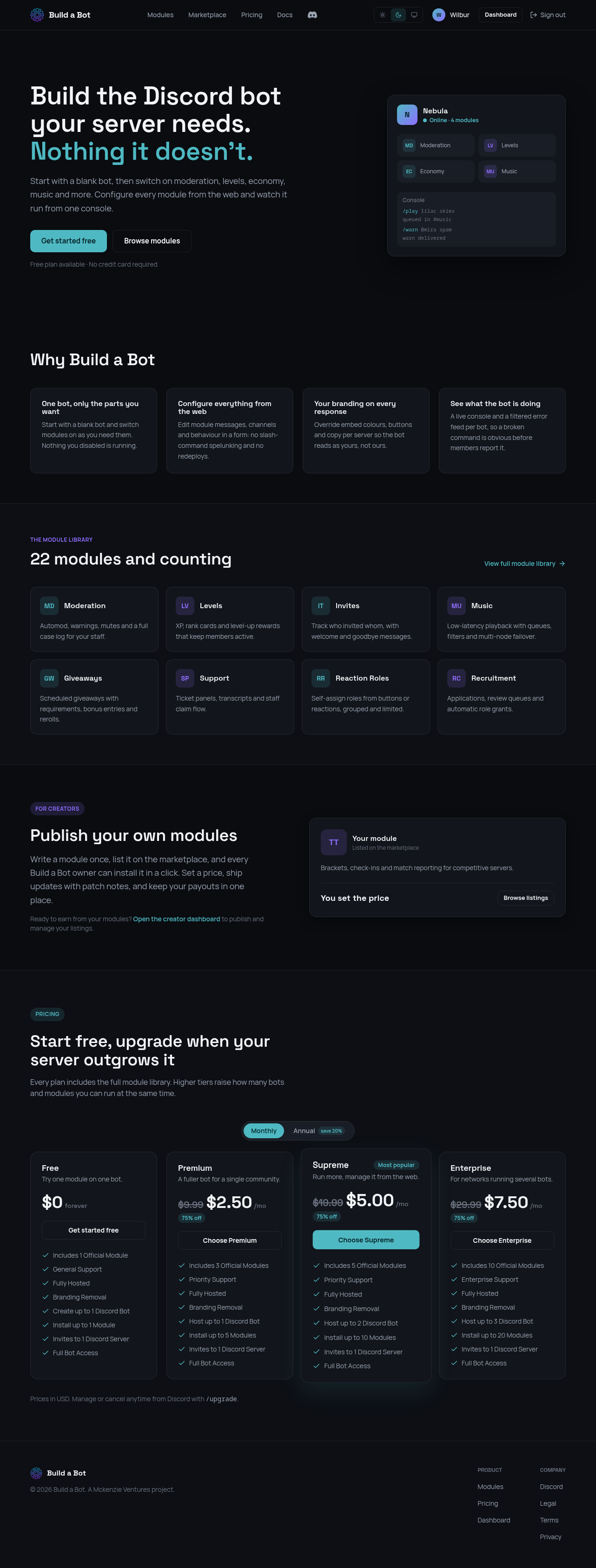
Landing Page - Explains the product: build a Discord bot by switching modules on instead of writing code or hosting anything. - Shows a preview bot card with its status and weekly activity chart. - Links to the module library, the marketplace and pricing. Modules - Every built in module with its icon, short description and feature highlights. - Each card links to the module's own detail page. - Modules are grouped by category with filtering. Marketplace - Community published modules with price, rating and install counts. - Search and category filters narrow the list. - Each listing leads to its own page with documentation, version history and reviews. Docs - Written documentation covering the platform, the module library and publishing. - Served from the same application rather than a separate site. Login - Sign in with Discord OAuth. No passwords are stored by the platform. Dashboard - Every bot the user owns with its live status chip, installed modules and plan compliance. - Stat cards track installed modules, deployed bots and the current plan. - The sidebar reaches every section of the app, plus the admin console for allowlisted staff. Bot Overview - Per bot summary: status, guild count, enabled modules and quick actions. - Start, restart and stop controls talk to the hosting panel directly. - An Invite Bot button hands over the Discord OAuth invite link after creation. Bot Modules - Shows only modules the user is entitled to: built in ones from the plan and purchased ones from the marketplace. - Switches beyond the plan's module limit are greyed out with an upgrade hint instead of throwing an error. Module Config - Per module settings for a bot, grouped by module and rendered from one shared config catalogue. - The same catalogue drives both this form and the bot side validation, so the two cannot drift. Server Overview - Per Discord server config home showing which modules are enabled there. - Links into each module's settings for that server. Appearance - Edit the bot's username and avatar, applied through the platform owned token. - Set the presence and activity the bot shows in Discord. Console - Live console with the bot's recent log output streamed from the hosting panel. - Command usage is listed alongside the log so a broken command is visible without a support ticket. Bot Settings - Rename the bot and manage its settings. - Deleting a bot makes it leave every server, resets its name and avatar, and returns its platform token to the pool. Bot Team - Per bot access control, so a bot can be shared between several Discord accounts. - Roles are scoped to the single bot rather than the whole account. Billing - Shows the current plan, subscription status and renewal date from the payment provider. - Upgrade and downgrade paths apply to bot and module limits immediately. Feed - Platform wide activity feed covering module releases, marketplace decisions and account events. Notifications - In app notification list covering purchases, listing decisions and bot events. Account Settings - Profile details from Discord and notification preferences. - Shows the current plan tier at a glance. Publisher - Publisher dashboard for listing modules on the marketplace: sales, payouts and listing status. - New listings are submitted to staff for review before going live. Publisher Analytics - Per listing performance: installs over time, revenue and conversion. Publisher Payouts - Payout history and current balance for marketplace sales. Admin Hub - Staff only overview with user, bot and subscription counts. - Access is limited to a preset allowlist of Discord IDs. - Tool cards link into each admin section. Admin Subscriptions - Every subscription on the platform with plan, status and linked user. - Searchable by user identifier. Admin Team - The staff roster, with each member's role and the time their role was last synced. - Owners are held in an environment allowlist rather than a database table, so the roster cannot be edited from the panel. Admin Badges - Badge definitions and the accounts each badge is granted to. - Badge grants are stored per badge as a list of account identifiers. Admin Modules - The module catalogue as staff see it: install counts, visibility and publication state. - Module visibility here decides what appears in the customer facing library.
VanquishMC
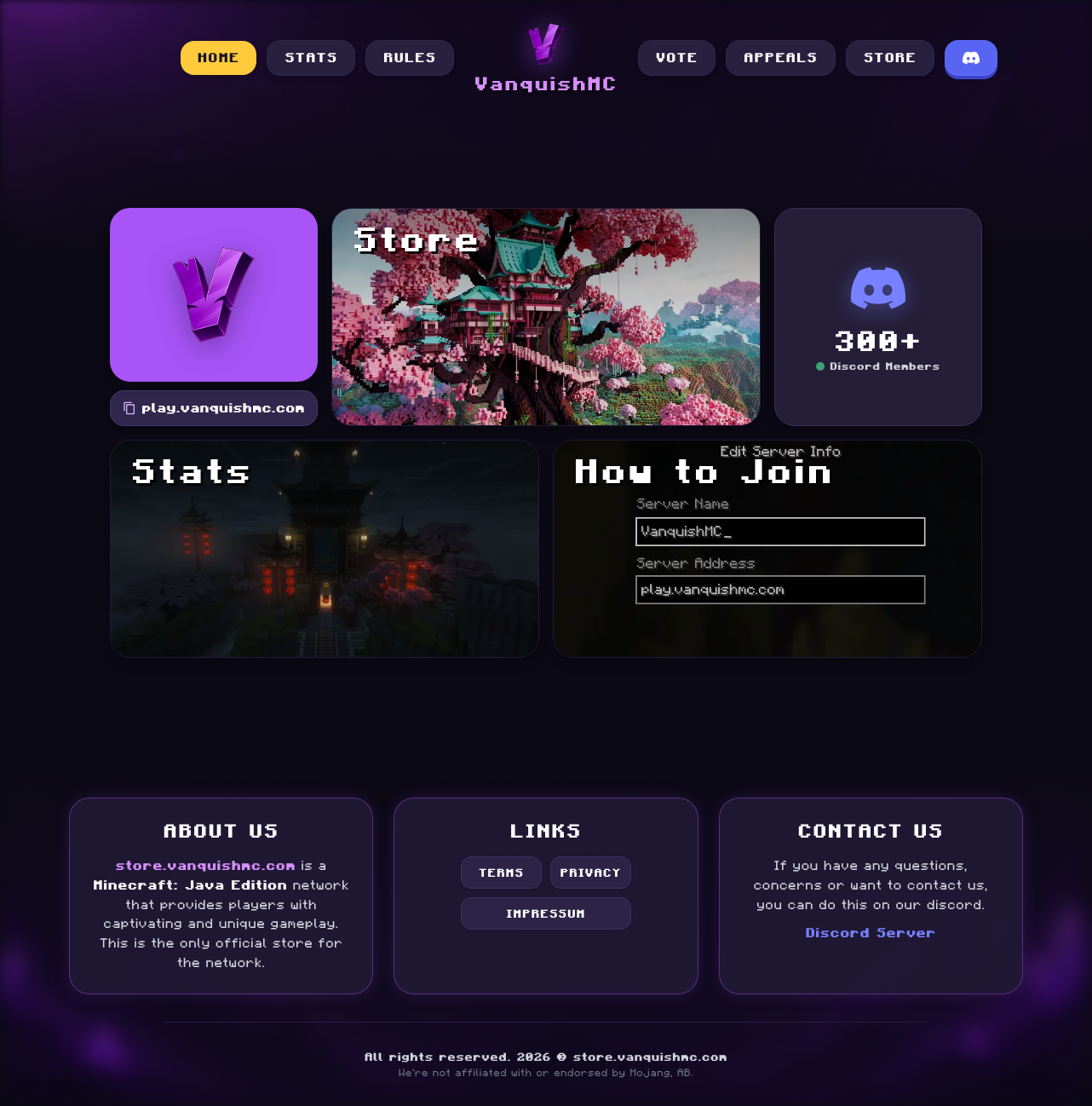
Homepage - The network's front page, built as a tile grid rather than a conventional landing layout. - Each tile leads to a section: store, stats, vote, rules, appeals and join. - Server address and player count are surfaced directly on the page. - Minecraft flavoured typography throughout. Store - The server storefront, with packages grouped by category. - Each package shows its price, contents and current availability. - Checkout hands off to Tebex, so payment and delivery are handled by the store provider rather than the site. Stats - Per player profile pages reachable from the stats view. - Playtime, balance and rank are read from the server network. - Leaderboard entries link through to individual players. Vote - Vote links for the server listing sites the network appears on. - Each site is listed with what it rewards, so a player can see what voting is worth before doing it. Join - Cross platform join instructions covering Java and Bedrock. - Server address, port and version requirements are listed in one place. Rules - The full rule set, written for a roleplay-adjacent SMP network. - Punishment policy is listed alongside the rules themselves. Appeals - Punishment appeal form, reachable without an account. - Submitted appeals are reviewed by staff outside the site. Terms - Terms of service for the store and the network. Privacy - Privacy policy covering what the site and the store collect, and how it is used.
Tempest Status
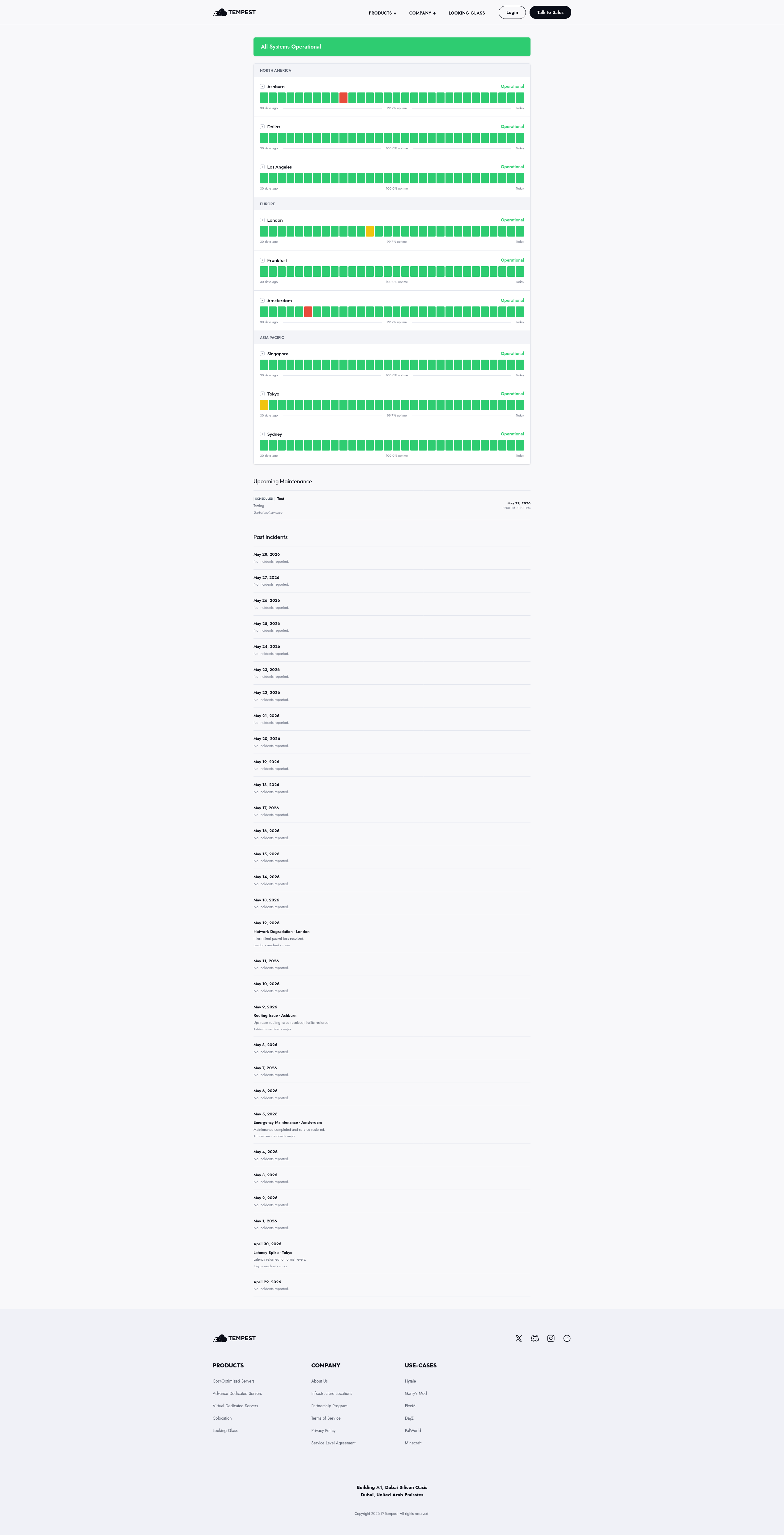
Tempest Status Website - This website is meant to be an easy to use way to manage and display the status of the services provided by the company in the various locations they operate. - It is built with Next.js and uses PostgreSQL as the database. - There's also a backend API that's meant to be interacted with by an accompanying Discord bot where users can submit reports. - When there's a certain number of reports within a specified time frame, the status of the service will be automatically updated to "Degraded Performance" and a notification will be sent to the staff team. - The main page shows a banner at the top with the current status of the services, and below that there's a section for each location with the status of the services in that location. - Each service has a status indicator that can be green Operational, yellow Degraded Performance, red Major Outage, or gray Maintenance. - Users can view up to 30 days of historical status updates for each service on the main page. - Admins can access all the historical data on the admin dashboard, which is set to 90 days by default.
Student Portal
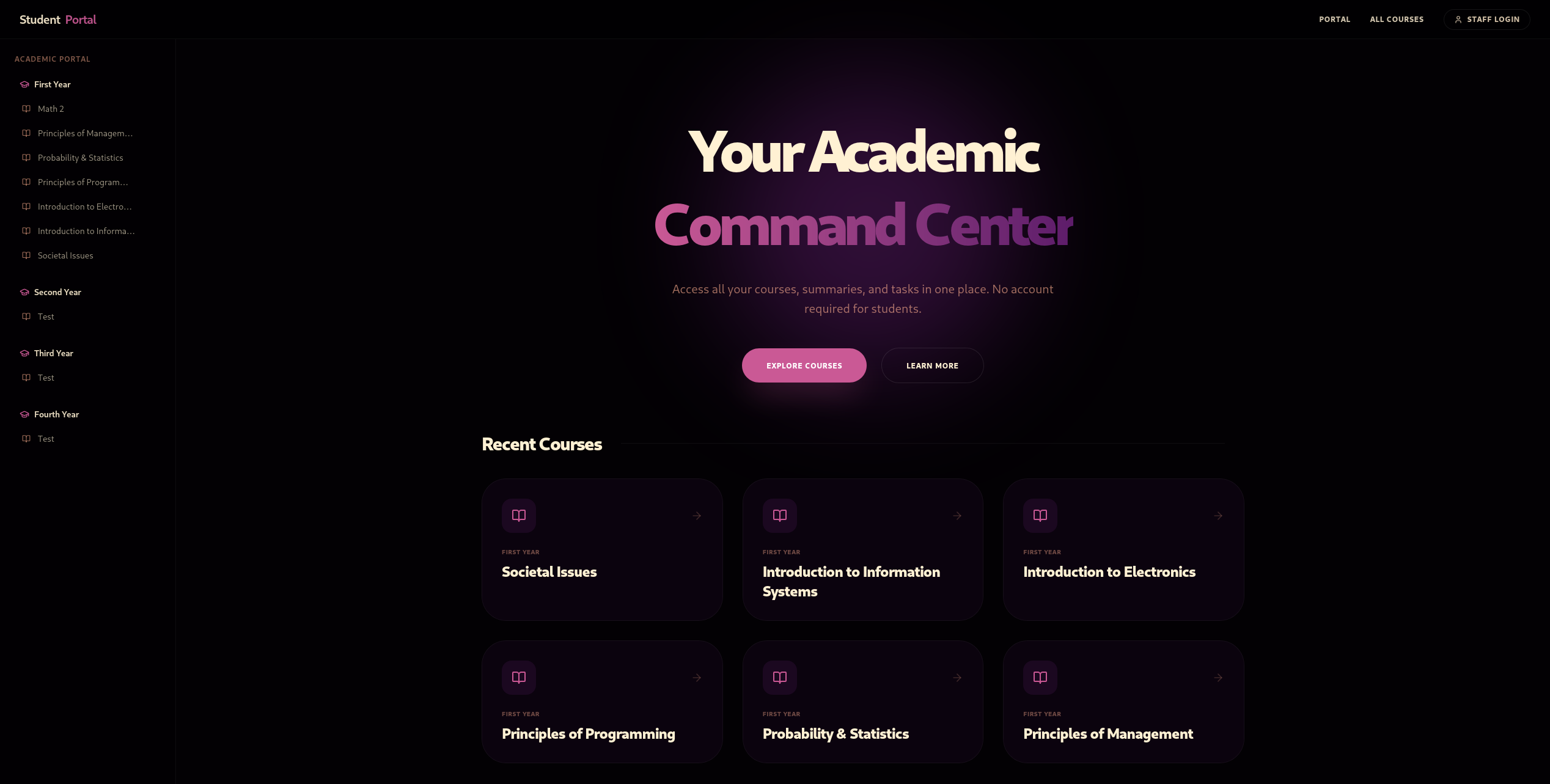
A fully-featured student portal website designed to provide students with easy access to academic resources, review materials, and previous exam papers. Features - Custom homepage with quick links to important sections such as Latest Courses, Learn More, and All Courses. - Courses page with a comprehensive list of available courses, including descriptions. - Review Materials page with downloadable resources for students to study and prepare for exams. - Previous Exam Papers page with a collection of past exam papers for practice and reference. - Admin & Leader accounts with the ability to manage content, update resources, and oversee user activity. - Easy-to-navigate upload system for adding new courses, review materials, and exam papers. - Dedicated approval system for admins to approve content uploaded by leaders before it becomes publicly accessible. Pending Approvals - The admin queue for content submitted by leaders, held as pending until someone approves or rejects it. - Each row carries the file, who submitted it, the date, and the year and subject it maps to, so an approver can place it without opening the PDF. - Approve & Publish releases it to the public pages immediately; the reject action drops it without publishing. - Preview PDF opens the submission in place, which is what makes the queue usable without a separate review step.
GurtComps
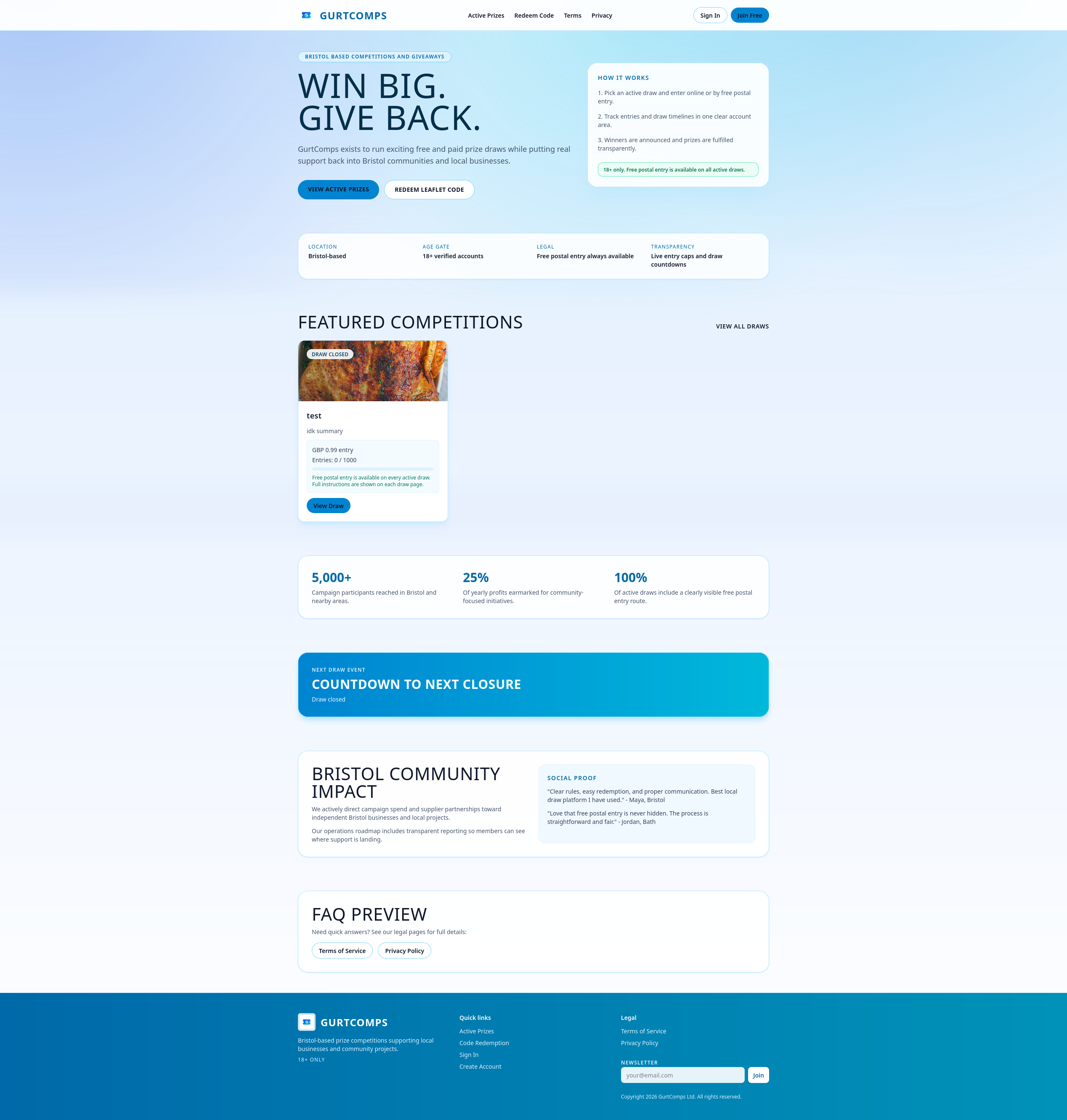
Home Page - Tells the user what we do and why we do it. - Explains that we are a Bristolian based company giving back to the Bristol community whilst supporting local businesses. Active Prize Page - Displays all active prize draws, time remaining, current entries, and max entries. - Displays a free postal entry on ALL active draws. Terms Of Service & Privacy Policy Page - Displays information about the website, terms, and guidelines in place. - Displays how user data is used and stored. Code Redemption Page - Easy-to-use interface accessed via QR codes on physical leaflets. - Requires users to input their unique code alongside their email address. - Automatically sends an email with the won prize e.g., Uber Eats codes or site credit. - Automatically applies any won site credit directly to the user's balance. Sign Up / Sign In Page - Allows users to create an account using their email and a custom password. - Allows users with existing accounts to log in. Admin Panel - Create, edit, and delete raffles includes uploading images, setting titles, and setting dates. - View site users and their activity, with the ability to delete accounts or ban users. - Send emails to the mailing list collected from sign-ups and code redemptions. - Misc administrative functions. Balance Information Page - Allows users to view and withdraw their site balance. - Requires the balance to be over a set amount before withdrawal. - Will use a payment provider's API for automatic payouts.
Quota Checker
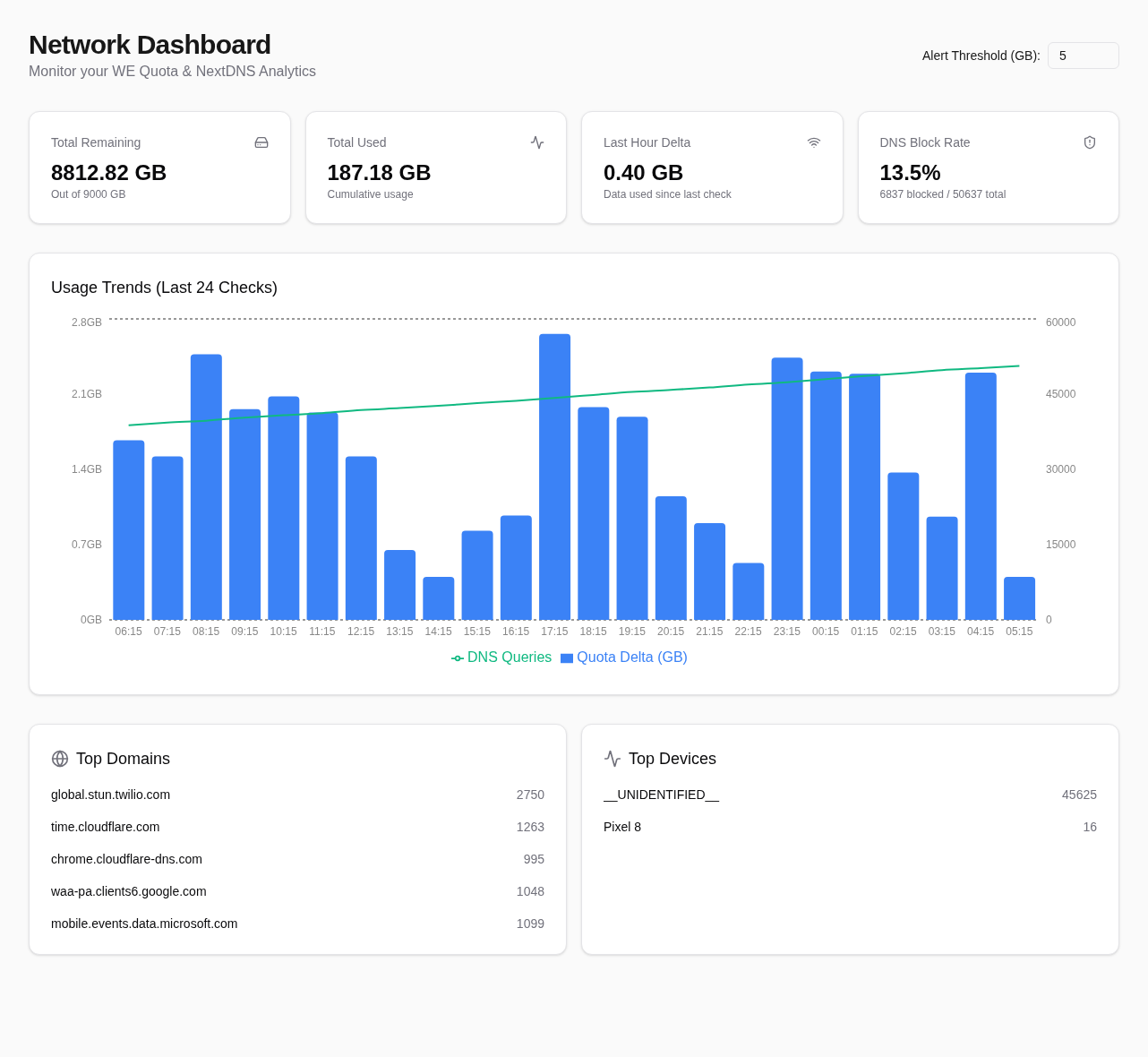
Overview - Four stat cards across the top: remaining quota, cumulative usage, the delta since the last check, and the DNS block rate. - Usage Trends chart plots hourly quota consumption as bars against DNS query volume as a line on a second axis. - Top Domains and Top Devices break the DNS traffic down by destination and by client. - Alert threshold is set inline, so a new limit applies on the next check. Usage Trends - The same chart at a larger size, covering the last 24 checks. - Quota delta reads against the left axis in gigabytes; DNS queries read against the right axis. - The two series share a time axis so a spike in queries can be read against a spike in usage.
# 04. WEB SCRAPING
HD Scraper
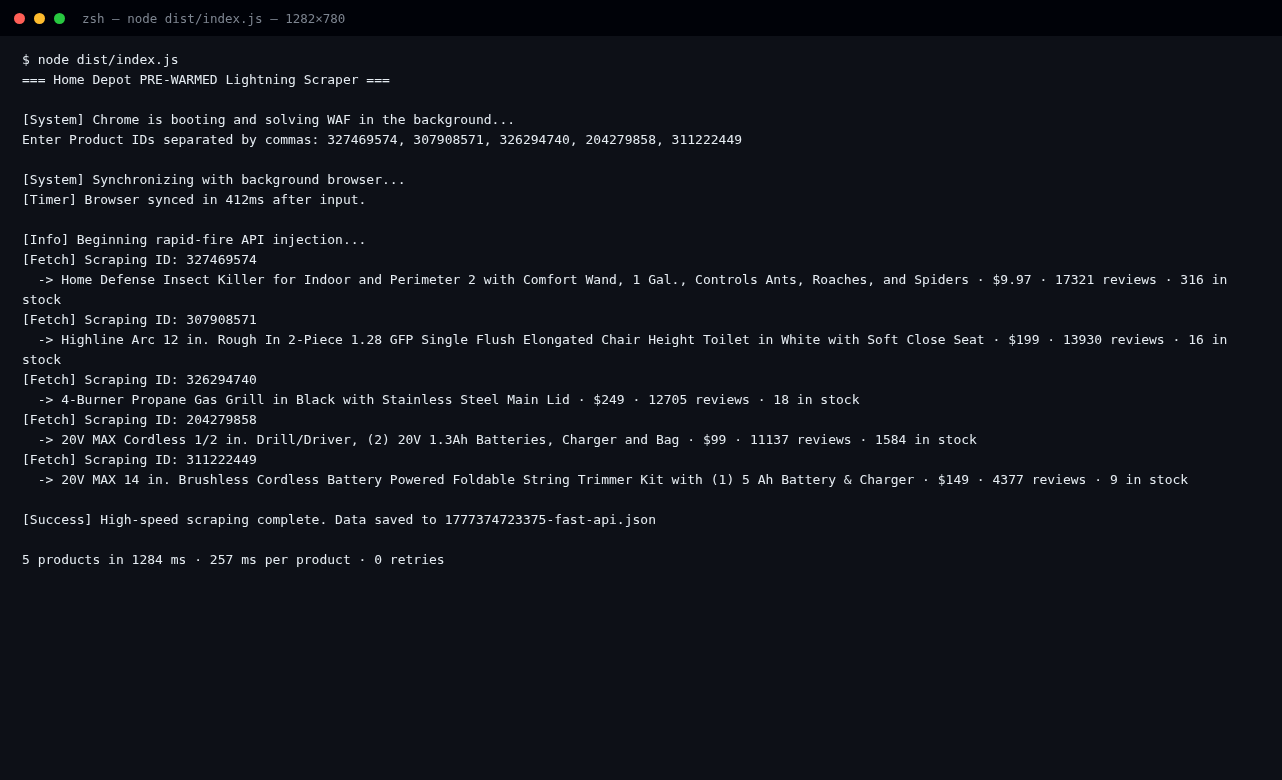
CLI Run - Runs one Chrome instance pre-warmed against Home Depot, so the WAF challenge is solved while the IDs are still being typed. - Product IDs go in as a comma-separated list; the browser is already synced by the time the prompt returns, 412ms in this run. - Each ID is fetched through the GraphQL endpoint from inside the page context, so the session cookies and headers are already valid. - Five products in 1,284ms — roughly 257ms per product, with no retries and no page renders. GraphQL Payload - The raw response per product is kept whole rather than flattened, so nothing is lost at scrape time. - Identifiers, availability, pricing, promotion, badges and reviews all arrive in one object. - The extractor reads what it needs from this payload; anything the site adds later is available without re-scraping. - Payloads are written to timestamped files, which is what makes the 38 committed runs reproducible. Extracted Data - The four fields the bot needed, pulled out of the payload: price, review count, stock state and quantity. - Stock quantity is read directly rather than inferred, so a listing at 1 unit is distinguishable from an unlisted one. - Review counts and prices are taken as the site supplies them, with no rounding or reformatting before they reach the caller.

Token Profit
Profit Request - /profit takes a wallet or token address and replies immediately with an acknowledgement. - The reply is posted before any work starts, so the member is not left guessing whether the command registered. - Realised PnL needs on-chain history walked token by token, which is why the acknowledgement says it may take a few minutes. Profit Report - The finished report lands in the same channel: realised PnL, cost basis, and the current holding. - The reply from the member is the expected reaction, because the number was not obvious from the wallet alone. Invalid Address - A malformed or unknown address is rejected up front, before any RPC calls are made. - The rejection is a single line, so it does not fill the channel the way a stack trace would. Cooldown - Per-user cooldown, shown as a Discord relative timestamp so it reads in the member's own timezone and counts down on its own. - The cooldown exists because a single report can walk a lot of history. Profit Card - The generated report card on its own, at full size, with the token, the PnL figure, and the position breakdown. - The card is rendered server-side and posted as an attachment, so it survives being forwarded or quoted elsewhere.
Profile Monitor
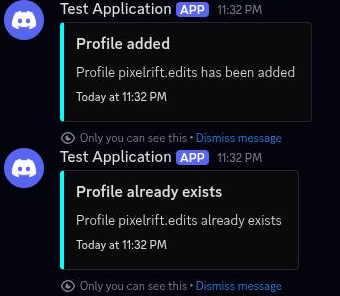
Profile Monitor Added - /profile add registers a TikTok creator with the bot and returns an ephemeral confirmation. - The polling loop picks the new profile up on its next sweep and starts storing every upload it finds. - /profile remove and /profile set bulk import from a text file round out profile management. New Video Alert - When a tracked video's view count moves more than the configured threshold between polls, the bot posts an alert to the notifications channel. - The alert shows the view gain in absolute numbers and as a percentage, old vs. new view counts, likes, comments, the posted date and a transcript excerpt. - A red filter button lets staff mute a video so it stops triggering alerts. Profile List - /profile list returns every monitored creator with its tracked video count and recent activity. - The response also summarises the monitoring setup: poll interval, alert threshold and the notification channel. - Profiles are exported as a profiles.txt attachment for backup or bulk editing. Config Panel - /config reports the current polling setup: 5-minute interval, 10% change threshold and MySQL storage. - /config differencepercentage sets how large a view change must be before an alert fires. - /config notificationschannel and /config filteredchannel choose where alerts and filtered videos are posted. Transcript Output - For each detected upload the bot extracts the video's spoken caption and posts it as text. - The log embed pairs the transcript with the video's title, posted date, duration and language. - Transcripts are archived in a dedicated log channel alongside the raw output.
Amazon Deal Scraper
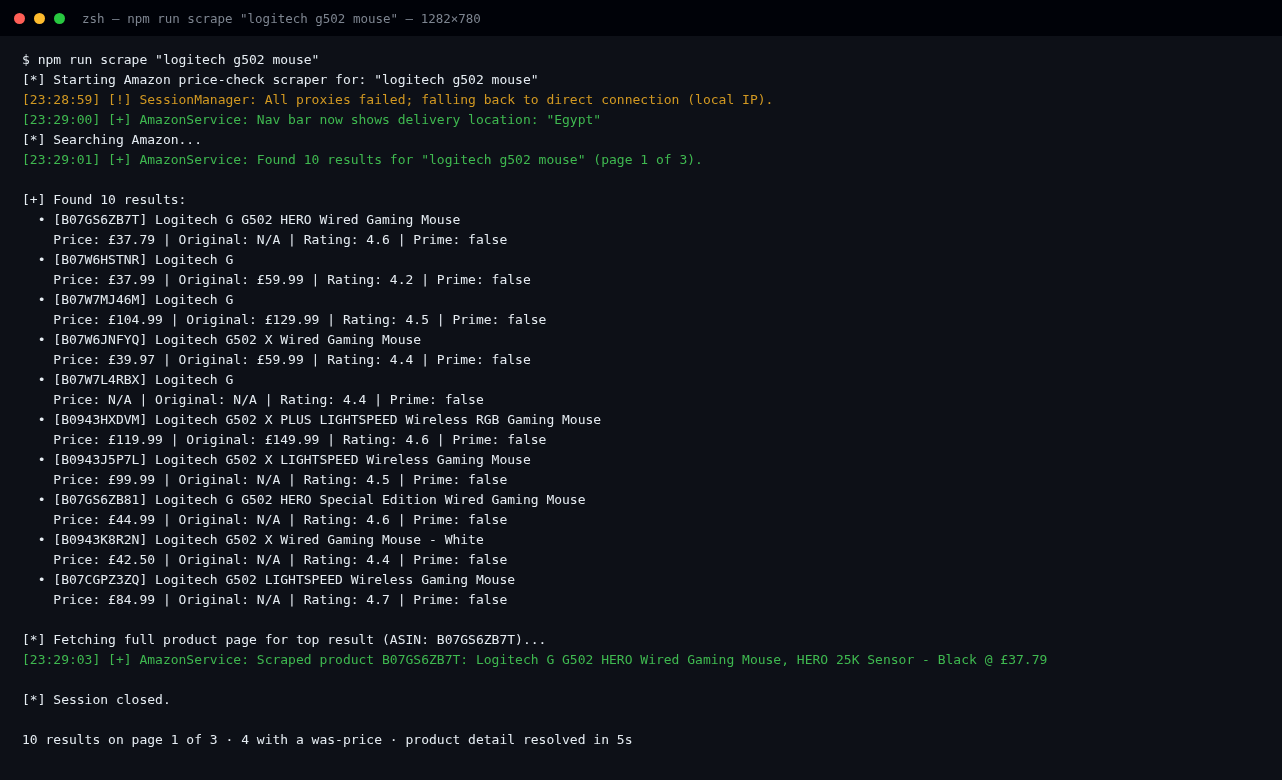
Amazon Deal Scraper The scraping engine behind Deal Hunter. It walks Amazon search result pages, resolves full product detail for anything that looks interesting, normalises the listing into a single typed ProductDetails object, and hands candidates to the discount gates. How it runs A one-shot CLI npm run scrape "<query>" drives the same AmazonService the Discord bot uses, so the pipeline can be exercised without the bot being online: bash tsx src/cli.ts "logitech g502 mouse" Pipeline 1. Session — Puppeteer with the stealth plugin, a persisted browser profile and a proxy pool. If every proxy fails it records that and falls back to a direct connection rather than dying. 2. Warm-up — sets the delivery location so prices and availability match the requested marketplace, then page-fetches the search results. 3. Search — walks result pages, capturing ASIN, title, price, was-price, rating and Prime eligibility per tile. 4. Resolve — fetches the full product page for a tile and extracts the canonical fields: price, list price, coupon fixed or percentage, seller when Amazon is not the buy box, stock status and the image URL. 5. Normalise — every numeric is coerced once, missing values become null rather than 0, and money keeps the listing's currency. 6. Gate — candidates are de-duplicated by ASIN and screened for the keyword, brand, price-range, rating and discount thresholds before anything is posted. Notes - Missing data is explicit: originalPrice: null means Amazon stated no was-price, which is why some captured listings show no discount line at all. - Throttling and WAF challenges are handled inside the session layer, not the callers, so a retry never produces a duplicate card.
Shopify Restock Scraper
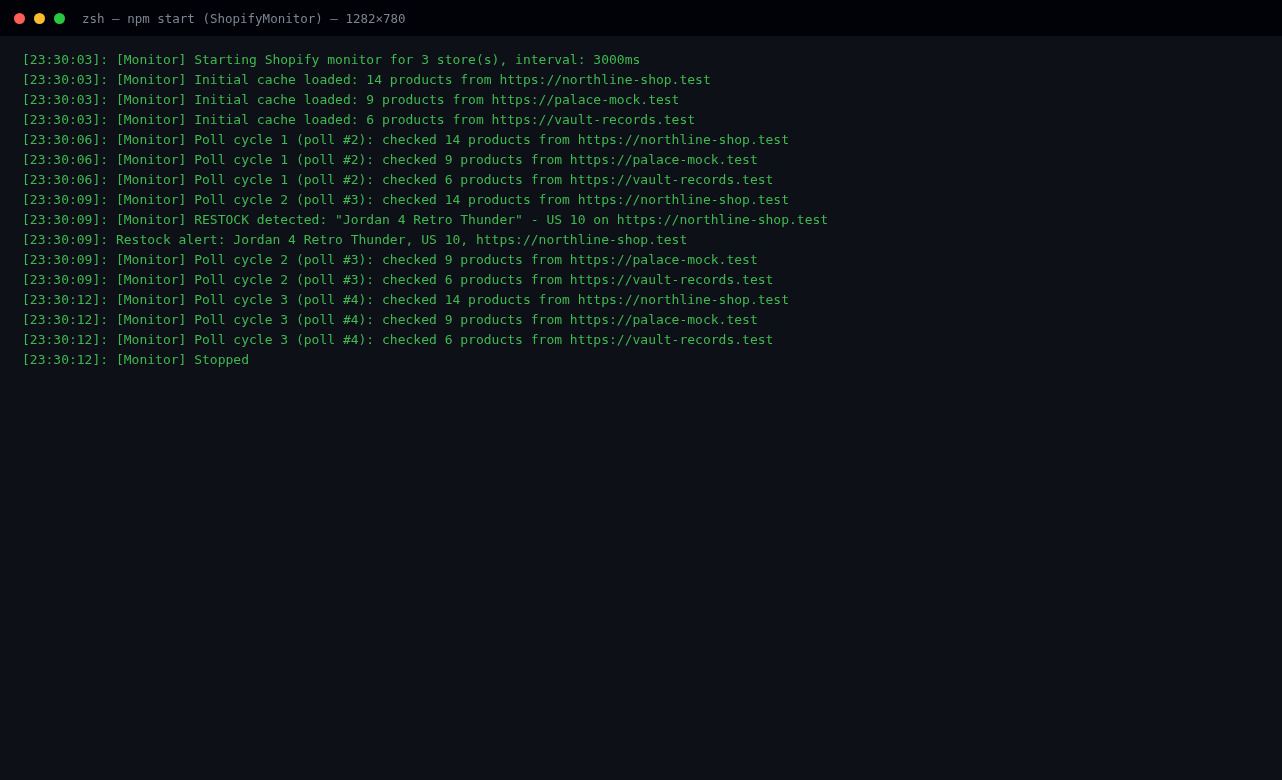
Shopify Restock Scraper The monitoring engine behind Restock Monitor. It polls Shopify storefronts on a timer, diffs each product's variant availability against the previous snapshot, and fires the moment something comes back in stock — optionally straight into an auto-checkout. How it runs bash npm start ShopifyMonitor owns the polling loop; the Discord client and the checkout worker run alongside it in the same process. Pipeline 1. Watch list — stores and individual product monitors live in the database, each with its own check interval. Turbo Mode drops the interval to 2 seconds for scheduled drops. 2. Catalogue fetch — pulls the storefront product JSON, caches it, and keeps the previous snapshot per store so availability can be diffed rather than guessed. 3. Diff — a variant that went from zero availability to one or more is a restock; a product that did not exist in the last snapshot is a new drop. 4. Alert — posts the variant, store, detection time, listed-to-eBay comparison and an autobuy hint to the configured alerts channel. 5. Auto-buy — when a watcher has it enabled, the checkout worker adds to cart, detects and solves the captcha through whichever provider is configured, submits shipping and payment, and reports success or the real failure reason. 6. Checkout log — every attempt is written to the checkout channel as ✅ Checkout Success / failure with the user, product and timestamp. Failures go to DM only, which is why the log channel shows successes. Notes - Captcha handling is a first-class path, not a retry: providers are tried in order and the elapsed time is logged. - Cart and checkout requests are real storefront calls, so a bot-protected store fails loudly Cart API: May be bot-protected instead of silently reporting a purchase.
# 05. OPEN SOURCE
OpenRGB
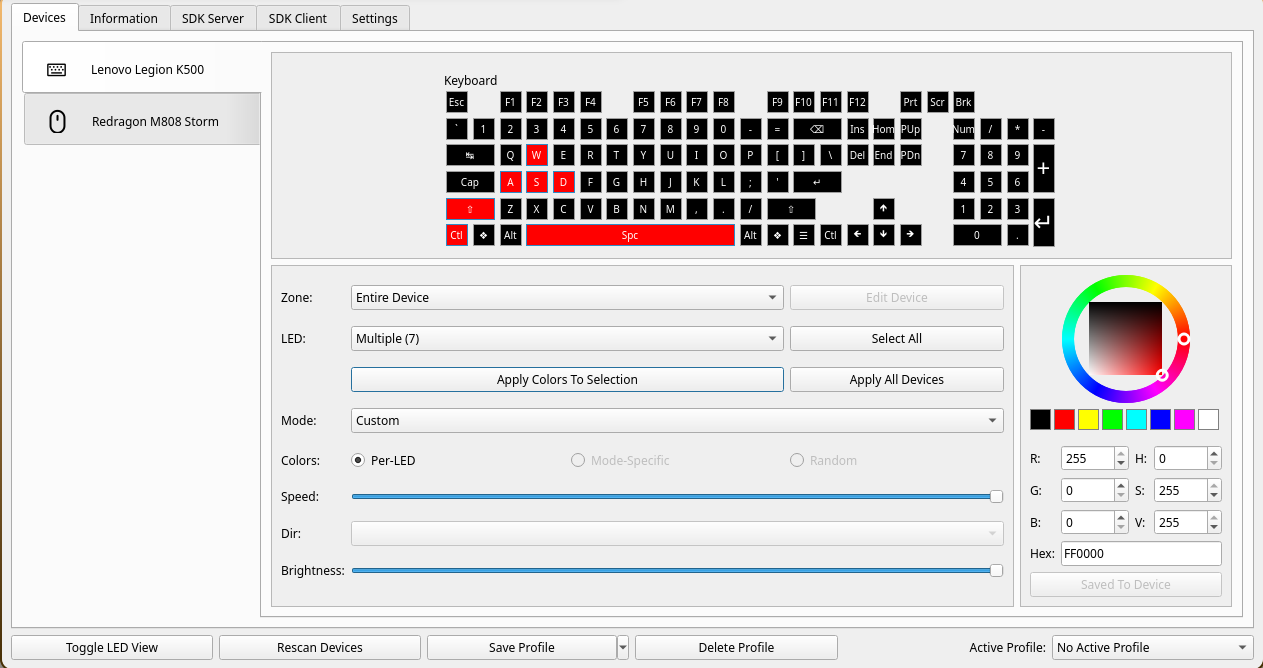
OpenRGB — Lenovo Legion K500 controller A merged upstream contribution to OpenRGB, the open source RGB lighting control suite for PC peripherals. The work adds a controller for the Lenovo Legion K500 keyboard so the device is detected and controlled the same way as the rest of the supported hardware. Devices - The Devices tab with the Lenovo Legion K500 selected and drawn as a full per-key layout. - Keys are addressed individually rather than as whole-device zones: the WASD cluster, left Shift, left Control and Space are selected and set to red while every other key stays black. - The LED selector reads Multiple 7, which is the per-key addressing the controller exposes. - Colour is set through the picker in Custom mode at Hex FF0000 and applied to the selection. Contribution - The K500 controller lives under Controllers/LenovoControllers/LenovoLegionK500Controller/. - Written in C++ against Qt and hidapi, following the existing controller interface so it plugs into the same detection and per-key update path as the other supported keyboards. - Merged upstream rather than kept as a fork. - Also contributed UI work around the auto-save indicator and device flags.