Commission Desk
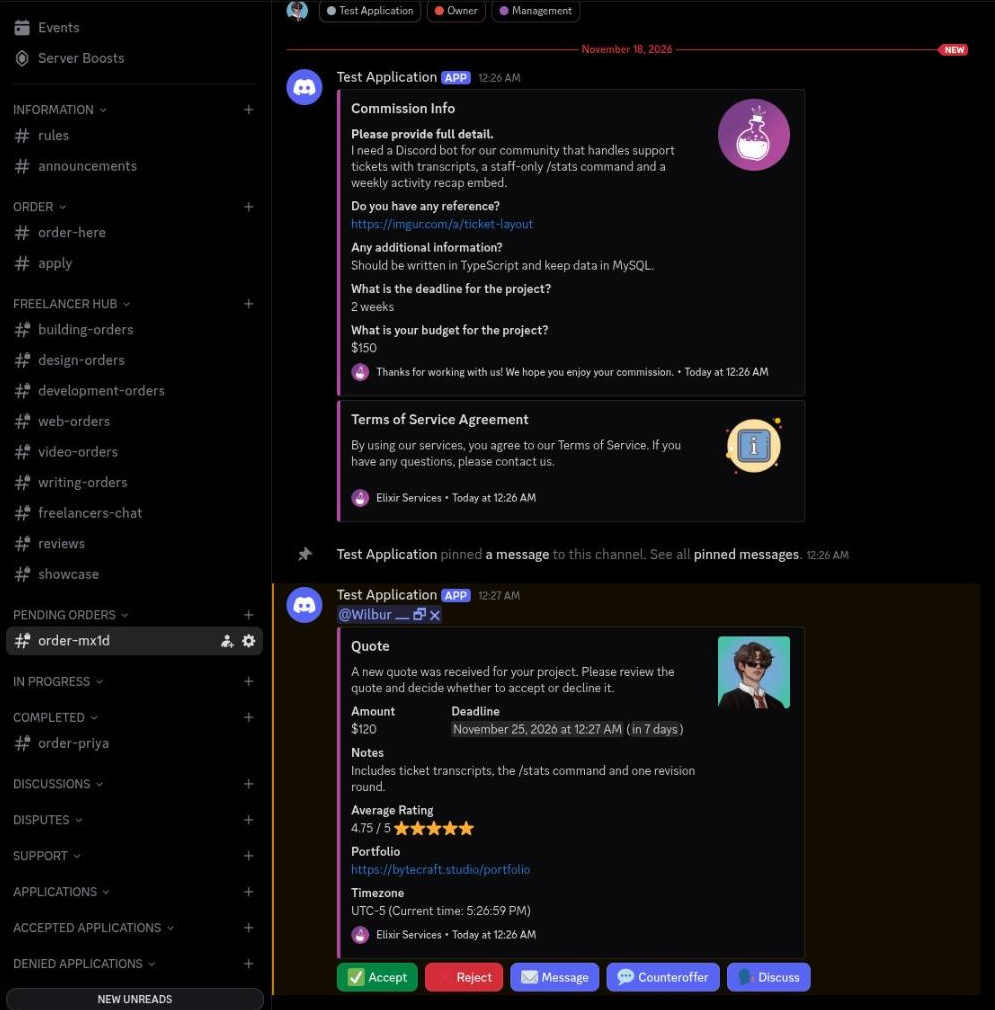
Commission Ticket - Private channel named order-mira, created for the client when the order form is submitted. - Commission Info embed lists the answers as fields, with the long detail answer promoted to the description. - Terms of Service Agreement embed is posted directly under it. - Quote embed shows amount, deadline, notes, average rating, portfolio and timezone. - Quote buttons: Accept, Reject, Message, Counteroffer and Discuss. Quote Accepted - Quote Accepted embed records freelancer, client, commission channel, amount and deadline. - Invoice Created embed lists invoice ID, freelancer, client, price, fees and payment status. - Fees are calculated as 8% of the amount plus a fixed $0.49. - Pay Now link button opens the PayPal invoice for the client. Order Form - Modal titled Order Form, opened once a department and a specialty have been chosen. - Five required inputs: full detail, reference link, additional information, deadline and budget. - Deadline and budget are single line fields; the other three accept paragraphs. - The answers become the fields of the Commission Info embed in the new ticket channel. Freelancer Panel - Department channel where every new order is mirrored for the freelancers of that department. - Same Commission Info embed, with Quote, Notifications, Message, Discuss and Client Reviews buttons. - Quote opens the amount, deadline and notes modal; the bot confirms with a private Quote sent message. - Notifications subscribes the freelancer to the order so they hear when another freelancer claims it. Freelancer Profile - Profile embed for a freelancer: user, description, timezone with the current local time, availability, portfolio, amount made and average rating. - The rating line carries the score, the stars and the number of reviews. - Edit Profile button is only shown to the profile owner. Withdrawal Requests - Staff only channel where a payout request is raised once a commission has been reviewed. - The request embed shows amount, commission channel, requester and the PayPal address on their profile. - The amount is the paid amount minus the 15% server cut. - Approve, Deny and Get PayPal buttons; approving edits the message to Withdrawal Approved and clears the buttons. Order Panel - The order-here channel with the pinned order panel posted by the bot. - The panel carries a single Order button, with the footer stating that creating a ticket accepts the Terms of Service. - Pressing Order replies privately with the Terms of Service embed and an Accept button. - Accepting opens the department picker: six departments in one select menu, each with its own emoji and role.
Staff Payroll
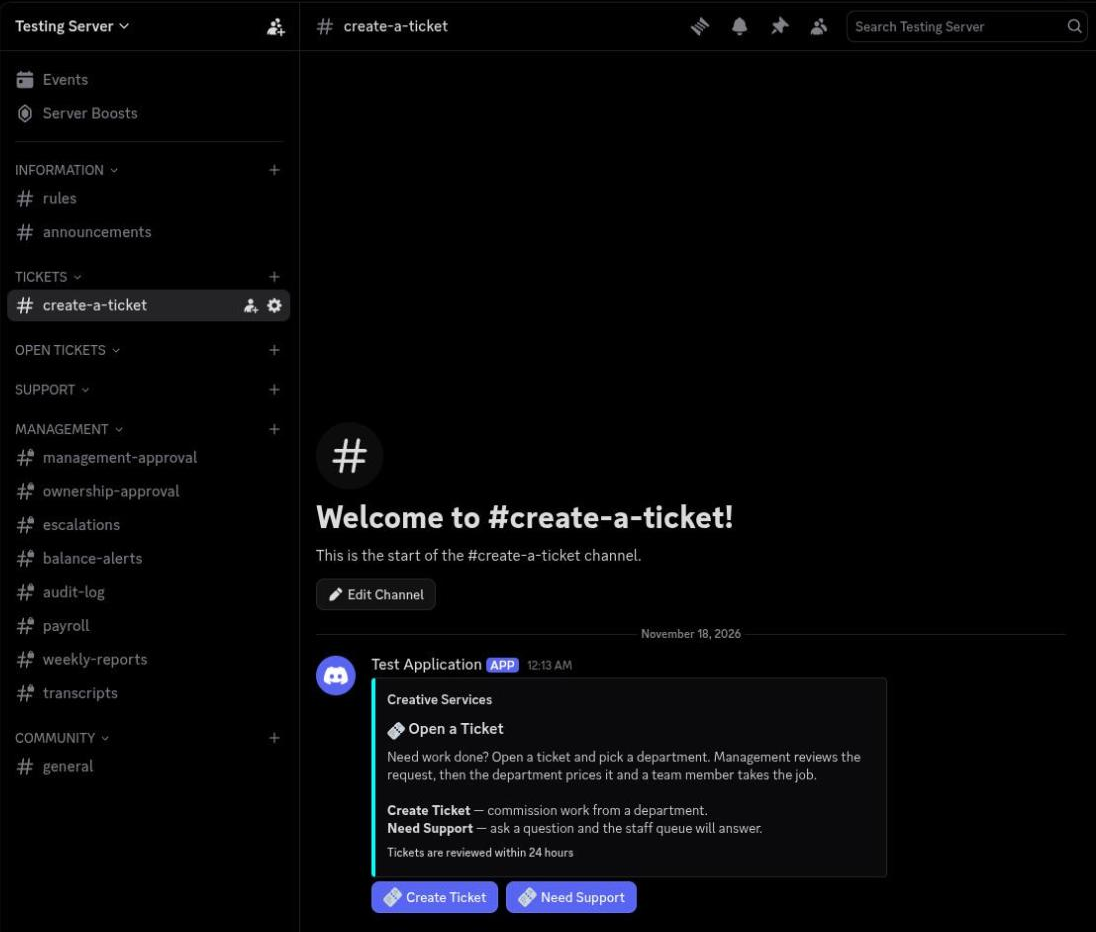
Ticket Panel - The create-a-ticket channel with the pinned panel posted by the bot. - The panel text is stored per server and rendered from the saved embed, so each department server can word it differently. - Two buttons: Create Ticket and Need Support, both opening a ticket flow. - Support tickets take a single question and land in the support queue instead of a department. Ticket Request - The ticket flow runs as one embed that updates in place while the requester answers, inside a five minute timeout. - The header keeps department, sub department, priority and deadline visible while the questions are answered. - Answered questions stay listed above the question currently being asked. - Back, Restart and Skip navigate the flow; the last step is a confirmation screen with Confirm Ticket, Go Back and Restart Ticket. Management Approval - Every submitted ticket is posted to the management channel with the department, ticket channel and priority. - Each question and answer is repeated as a field so management can price the work without opening the ticket. - Approve and Deny buttons; approval passes the ticket on to ownership, denial closes it with a reason. - Department review follows the same pattern once management has signed off, with Approve, Questions and Deny. Payroll Approval - Payroll is submitted per pay period and posted to the payroll channel for management. - The summary shows pay period, status and payday, then gross earnings, total deductions and net pay. - The deduction breakdown lists retainage at 20%, missed weekly reports at 5% each and late penalties. - Each project is itemised with its base amount, retainage, report and late deductions, and the net for that project. - Approve and Deny buttons; approving notifies the worker with their net pay and project count. Department Statistics - Per department totals: open tickets, completed tickets and total tickets. - Average completion time in days and total costs billed for that department. - The same command family covers global stats and a per worker quarterly view with earnings, retainage and strikes. Weekly Report - Posted to the weekly reports channel each time a worker submits, with the week range and submission time. - Counts the projects worked on and summarises how many sat in each stage. - Each project gets its own field with the stage emoji and the worker's notes. - Reports are due Sunday 23:59; a missed report adds 5% retainage to that worker's pay for the quarter.
Server Wallet
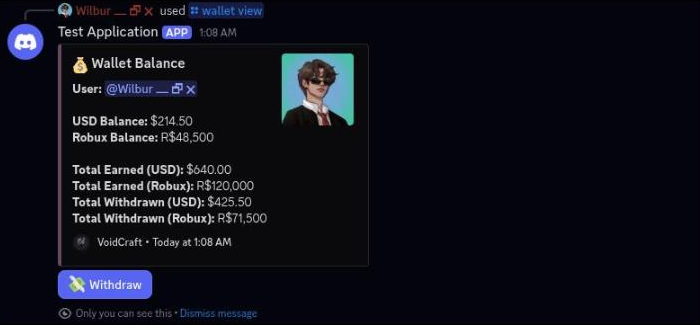
Wallet Balance - Private wallet view for a freelancer: USD balance, Robux balance, total earned and total withdrawn for both currencies. - Robux is shown as R$ with thousands grouping, USD as $ with two decimals. - A Withdraw button is only attached while the wallet holds a balance. - The wallet keeps running totals only; there is no transaction history list. Withdraw Funds - Balance picker that opens when Withdraw is pressed, showing both balances before choosing a currency. - Withdraw USD and Withdraw Robux buttons lead to separate modals. - The USD modal is titled Withdraw USD and caps the amount to the current USD balance in the field label. - The Robux modal asks for the amount and the Roblox username. Withdrawal Requests - Staff channel where every wallet withdrawal lands for approval. - The request embed shows amount, currency type, requester, the payout address on their profile and the balance left after the request. - Approve, Deny and Get PayPal buttons; approving edits the message to Withdrawal Approved and removes the buttons. - Robux withdrawals post a separate embed with the Roblox username and remaining Robux balance, ping the management role and only offer Approve and Deny. Payment Methods - Posted in the commission ticket once a quote is accepted: amount due, freelancer and deadline. - Three payment buttons: PayPal, Robux and Pay with Balance. - Choosing Pay with Balance opens a private follow up showing the amount due next to both wallet balances. - The balance sub-picker only offers a currency the wallet can cover. Robux Payment - Robux payments are handled by hand, so the request goes to the management channel with the client, commission, USD amount and the estimated Robux total. - The estimate converts the amount due at the configured Robux exchange rate. - Management confirms with Confirm Payment or drops it with Cancel. - Confirming records the Robux actually received and posts a paid notice into the commission channel. Dispute Panel - A dispute opens its own channel named after the client, with the reason, both parties, the commission, the total paid and the deadline. - The first message carries Post Reply, Handle Dispute, View Channel and Close Dispute; Post Reply stays disabled until staff take the case. - Handling the dispute posts who is mediating it. - Each reply gets Agree, Disagree and Request Evidence buttons so both sides can mark up the other's statement. Affiliate Program - Private affiliate summary for a freelancer: referral invite link, number of invited clients, cut percentage and earnings so far. - Cut defaults to 2% and is paid on top of the freelancer's own earnings when a referred client completes a commission. - Earnings are credited to the wallet and announced in a direct message.
Moderation Suite
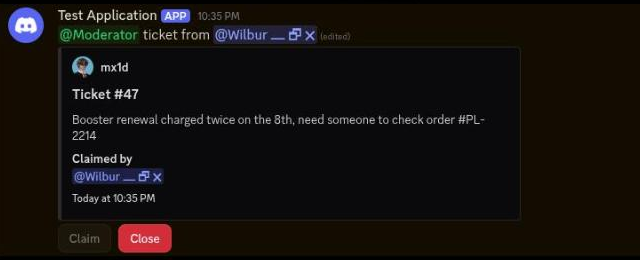
Dashboard - Control panel home for the bot: bot status, ping, CPU, memory and disk cards with a 24-hour view selector. - System health and member activity charts plot CPU/memory/disk/ping and members/joins/leaves/messages over time. - Recent errors section links into the error log, and the sidebar reaches every module's settings. Auto Moderation - Hub for the bot's four message-safety layers: Discord's built-in automod actions, advanced rule-based automod, Join Guard and thread-notification cleanup. - Each layer gets its own configuration page behind the card. Moderation - Case management for bans, kicks, mutes and warns, plus the server's user report configuration. - Staff limitations, tickets, the deletion log and punish settings default values per action hang off the same hub. Raid Protection - Safety setup in the style of Discord's own: raid detection, new member verification via Join Guard, emergency response, alerts and exemptions. - Each protection shows its current state on/off, configured count with review and edit entry points. - A panic command locks the server down: joining blocked and moderator actions and role gains suspended until lifted. Roles - Role automation hub with tabs for join roles, reaction roles, role connections and sticky roles. - Join roles support a default delay, waiting for Discord rules screening, and syncing roles to members already in the server. Levels - XP configuration: per-message XP range, cooldown, minimum message length and a 10-message spam-pattern filter. - Channel, role and member filters decide where XP counts, alongside level rewards and XP logs tabs. Logging - Per-type logging configuration grouped into categories such as applications, channels, Discord AutoMod, emojis and events. - Bulk actions set or remove a channel for all types at once, with mass edit for individual overrides. Welcome Messages - Join, leave, boost and role-assignment message configuration, each with its own template and target channel. Profile Checker - Profile checks configured as saved conditions over member names, bios, pictures, banners, status text, pronouns and connected domains. - Conditions share the same moderation actions as message checks and are gated behind explicit enablement. Tickets - Ticket lifecycle in Discord: opened embed with topic and open time, claim and close buttons for staff. - On close the bot records who closed it, how long it stayed open and where the transcript was saved. Automod Action - Message tripped the invite-links and mass-pings rules; the member gets a notice explaining what was removed and the timeout applied. - The bot posts the resulting case with target, duration and the log channel it was recorded in. - Moderators can let the automatic action stand without further work. Confessions - Anonymous confessions queue into a staff review channel with an auto-screen result before anything posts. - Approve, Deny and Report buttons act on the submission; the author gets a confirmation once it is live. - Approved confessions post to the public channel stripped of any author information.
Debate Arena
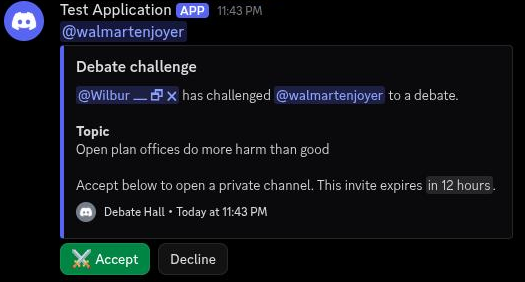
Challenge Invite - The /challenge command posts the invite embed with challenger, opponent, topic and expiry as a relative timestamp, pinging the opponent. - Accept and Decline buttons; accepting opens a private debate channel, declining posts the refusal with the topic. - An ephemeral confirmation tells the challenger the invite was sent. Debate Panel - The private debate channel, named debate-{id} after the debate, carries the topic as its channel topic. - The panel embed lists both debaters and states that ending the debate requires both sides to agree. - End debate starts the close flow; Request to spectate lets a non-participant ask the debaters for access. - Debate turns appear as normal messages below the panel. Spectator Request - /discussion spectate posts a Spectator request embed in the debate channel, pinging both debaters and naming the requester. - Let them in and Decline buttons; either debater or a staff member can decide. - An ephemeral reply confirms the decision to the requester and notes they will be asked to vote when the debate closes. Spectator Ballot - When a debate closes, the channel posts the Debate closed embed with the reason and the voting window. - Approved spectators get an ephemeral ballot: a winner page with a select menu, per-debater rating pages scored 0 to 10 per category, and a review page. - Back, Next and Submit ballot buttons navigate the pages; answers can be changed until submit. - Rating categories come from the server config; the ballot walks through both debaters before the review. Player Card - The /card embed shows wins, losses and draws over the total debates, win rate, streak and current Elo. - Average spectator ratings per category are listed under the record. - Elo starts at 1000 and moves by a K-factor of 32 after each rated debate. Punish Menu - /punish opens a tier select: verbal warning, formal warning, mute C3 to C6, decided by the duration entered, server restriction, temporary ban and permanent ban. - Picking a tier opens a modal for the reason and, for mutes and tempbans, the duration. - The issued punishment is posted as a {tier}: {label} embed with reason and duration, and the case is logged. Debate Summary - The vote result embed first: winner, per-debater average ratings, the tally and the ballots cast. - /summary posts an AI transcript summary titled Summary: {topic} with sections for the topic, each debater's case, sources cited, key clashes and conduct. - The summary stays neutral and does not declare a winner; the result comes from the spectator vote.
Algo Recap
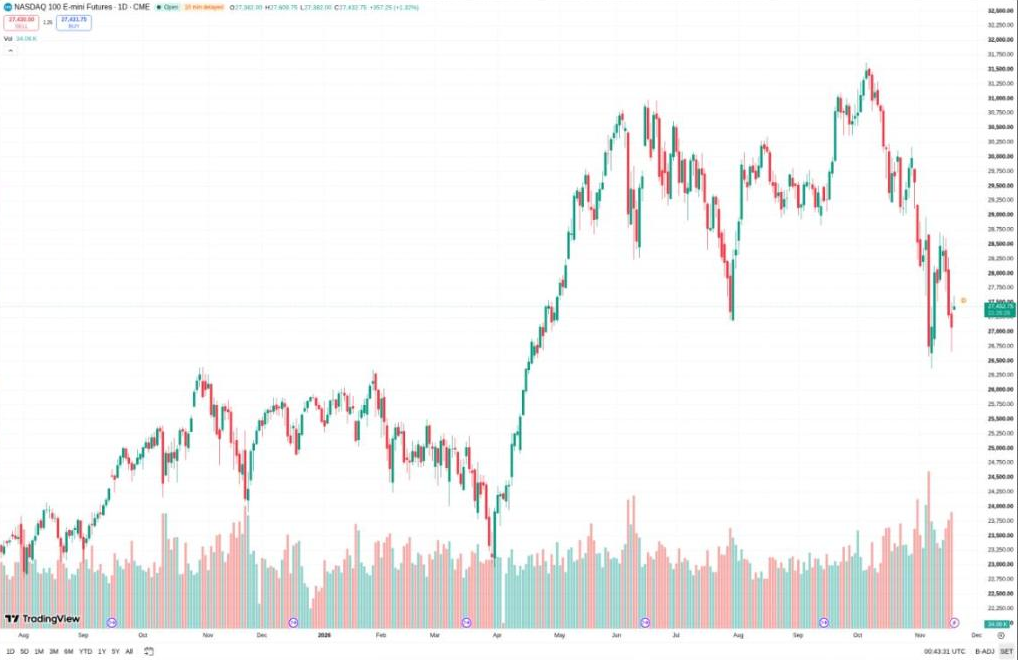
Algo Chart Request - A member asks in futures and runs /algo; the bot replies in the same channel with the chart rendered on a dark card. - The card carries the symbol, the last price, and the moving averages drawn over the candles. - The red candle above the 100 SMA is the setup being discussed in the replies underneath. Auto Algo Chart - The same chart posted on a schedule rather than on request, so the channel fills without anyone asking. - Auto-posts are keyed to a symbol list and a time, and land in the channel they were configured for. - The 200 SMA is the level being watched; the algo flips short on a close below it. Weekly Recap - /recap weekly aggregates every trade logged that week and renders the summary as an image. - The card shows the win/loss split, net points, and the best and worst labelled setup. - A green week here, with the breakout label carrying most of the result. Trade Logged - /recap insert logs a single closed trade and replies with a per-trade confirmation. - Each card carries symbol, direction, entry, exit, points, PnL, and the setup label the trade was tagged with. - Wins and losses use the same layout so a run of trades reads as one sequence. Daily Recap - /recap daily rolls the day into one embed: trade count, wins, losses, breakeven, total and average PnL. - Every trade is then listed inline with its symbol, direction, entry and exit, so the day can be audited line by line. - Five trades on the day, called here. Premarket Scrape - /scrape time set schedules a premarket board to post into premarkets at 08:45 on weekdays. - /scrape time view lists every scheduled scrape with its channel, time, and day set. - The board drops fifteen minutes before the bell, without anyone running a command. Futures Recap Card - The rendered weekly recap card on its own, at full size. - Candles and moving averages on the left, the PnL distribution and win rate on the right. TradingView Capture - /chart pulls the TradingView chart for a symbol and posts it as an image, with the interval and range the requester asked for. - The capture is taken at request time, so it reflects the live chart rather than a cached copy. TradingView Capture 2 - A second capture at a different interval, showing the same symbol over a wider range. - Interval, range, and indicators are all set per request, so one command covers every timeframe the members use.
Staff Portal
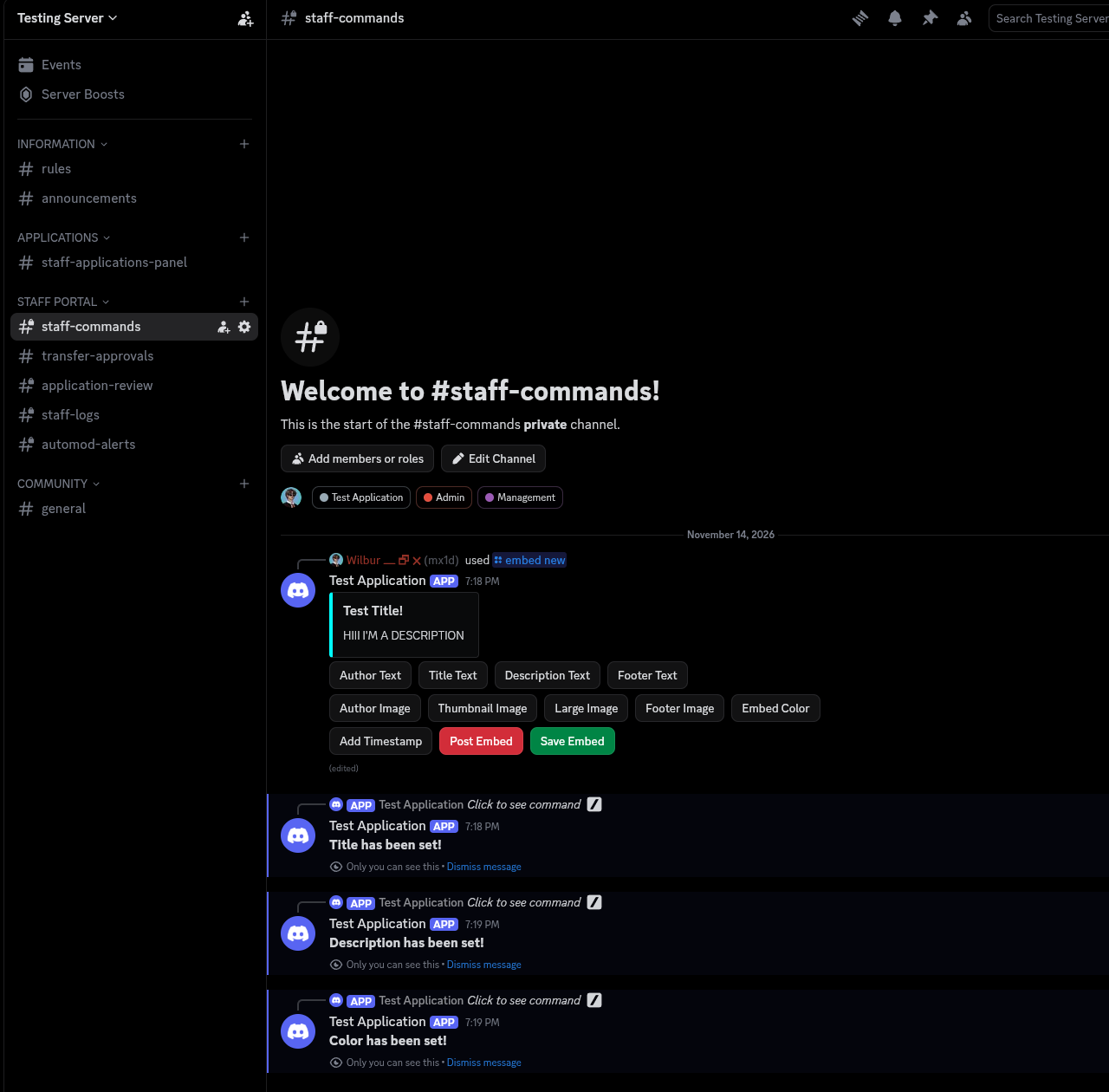
Embed Builder - /embed new posts a panel titled Embed Builder with three rows of edit buttons. - The buttons set author text, title, description, footer text, author image, thumbnail, large image, footer image and embed colour, each through its own modal. - Add Timestamp switches the timestamp on, Post Embed sends the finished embed to a channel, Save Embed stores it under a name. - Saved embeds can be listed, posted again into another channel or edited by name. Department Transfer - A transfer ticket lists the member, the source and target department, the new rank and both supervisors. - Three confirmations are required: source supervisor, target supervisor and the transferring member. - Each button records one confirmation and rewrites the ticket in place with Confirmed or Pending per role. - The final status line reports Approved and executed when all three are in; Cancel closes the ticket without moving anyone. Staff Application - /application panel posts an intake card naming the preset, the number of questions and the time limit. - Start Application opens a confirmation in DMs before any question is asked. - Questions are asked one at a time and the draft is confirmed again before it is submitted. Application Review - Submitted applications are posted to the review channel with the applicant, preset, submission time and status. - Each answer is listed under the question it belongs to. - Approve grants the configured roles and messages the applicant; Deny closes the application. Leaderboard - /leaderboard lists the top ten members by level and XP for the server. - Each line shows the rank, the member, their level and progress towards the next level. Automod Config - /automod configure creates or edits a Discord AutoMod rule from a preset: invite links, external links, mention spam or keywords. - Options cover the alert channel, the mention limit and an optional timeout in minutes. - /automod list reports every managed rule with its state and its action. Arrest Record - /department record-arrest writes an arrest record to the database and posts it to the department log. - The log entry carries the officer, the suspect name and the record ID. - Rank changes in the same department are written to the same log.
Game Panel
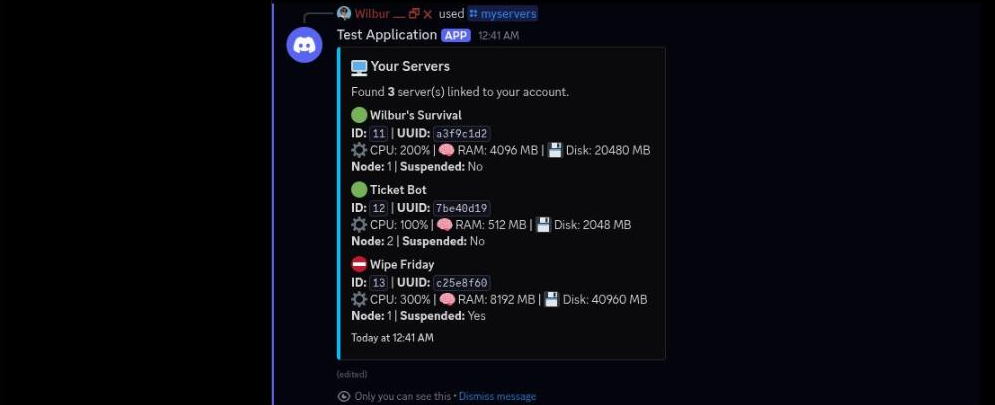
My Servers - /myservers lists every server on the linked Pterodactyl account. - Each entry shows the server ID and UUID, the CPU, RAM and disk limits, the node and whether the server is suspended. - The reply is ephemeral and caps at 25 servers, with a footer when the account holds more. Nodes Overview - /nodes overview lists each node with its server count and FQDN. - RAM and disk allocation are drawn as ten cell progress bars that turn orange above 70% and red above 90%. Server Status - /server status shows the state of one server with CPU, memory, disk, network in and out, and uptime. - Refresh re-reads the resources from the panel and edits the same message in place. Trial Coins - /free-server status lists trial servers with the coin balance, hours left, hourly cost and upgrade counts. - Coins are earned per hour while the required status text is set on the Discord account. - Auto-buy, active and DM-verified state are shown per server, with hours earned today and hours earned in total. Suspend Confirmation - /server suspend asks for confirmation before the server is stopped and the owner loses access. - Confirm Suspend runs the action and reports the result; Cancel leaves the server untouched. Account Linking - /link sends a six digit code to the email address given. - Enter Verification Code opens a modal for the code, then links the Discord account to the Pterodactyl and Paymenter accounts. - The result lists each account with its linked ID or Not found.
Billing Sync
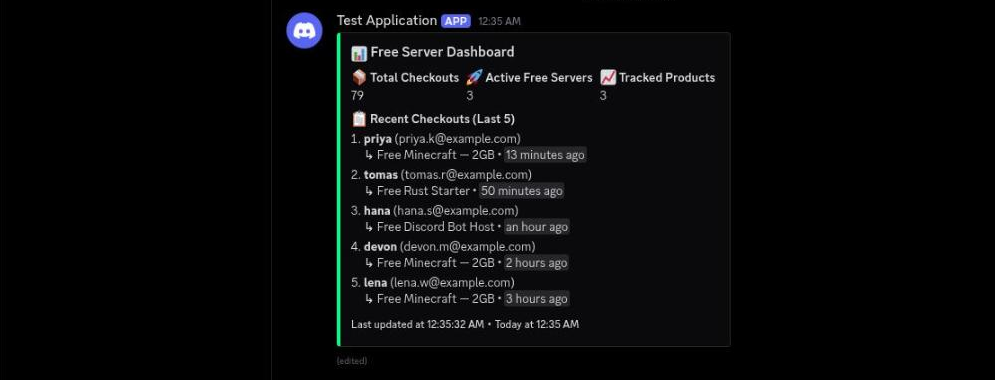
Dashboard - /dashboard reports free server checkout totals read straight from the database. - Counters cover total checkouts, active servers, suspended servers, deleted servers and tracked products. - The last five checkouts are listed with username, email, product and time. Audit Logs - /auditlogs lists recorded actions with a severity icon, the action name, the target type and the details. - Each entry carries a relative timestamp; the footer reports how many logs were shown. - An optional action filter narrows the list to one action type. Ticket Lifecycle - Archiving a ticket replaces the panel with an archive summary: who archived it, when, the ticket creator and the close reason. - Re-open returns the ticket to normal use; Delete Ticket asks for confirmation first. - Confirming the deletion posts transcripts to the user and removes the channel. Checkout - /checkout lists the free products as link buttons, one per product. - Each button opens the checkout page for that product; the bot detects the finished checkout and links the server to the Discord account. - The admin log records the product, email, username and the running checkout total. Account Status - /status shows the linked Paymenter email and the link state. - Every server on the account is listed with its state icon, server name, panel ID and product. Link Account - /link opens a modal asking for the Paymenter email. - Submitting sends a verification code to that address; /verifylink completes the link.
Sports Odds
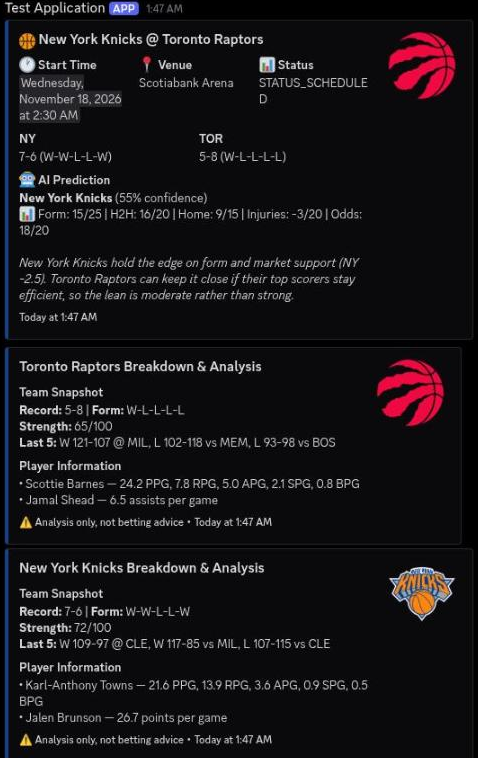
AI Game Analysis - Per-match analysis embed generated from live team records and season statistics. - Header carries both teams with their records and the venue. - Prediction field names the favoured side with a confidence percentage. - Key Factors lists the reasoning behind the pick, weighted by home/away splits. - Both team records are repeated as their own fields so the numbers behind the call are visible. Odds Comparison - Odds board for a single fixture, pulling prices from several bookmakers at once. - Each bookmaker is listed with home and away prices in both decimal and American formats. - Best available price per side is promoted into its own field. - Implied probabilities are calculated from the best price, not the average. Prediction Card - Community prediction totals alongside the model's own call for the same fixture. - Vote counts are rendered as text bars with percentages and raw totals per side. - AI prediction and confidence sit below the community split so the two can be compared directly. - Key Factors lists the statistics behind the model's pick. Player Picks - Player prop suggestions for a single fixture, each with a line and a short rationale. - Match header carries the fixture and tip-off time. - Picks are numbered so the list can be read in order. Live Scoreboard - Every in-progress game across the tracked sports in one embed, grouped by sport. - Each line shows both teams, the score, and the period or clock. - Games with a dedicated channel link back to it; untracked games are marked as such. - Used to check scores before settling a bet without leaving Discord.
Live Sports
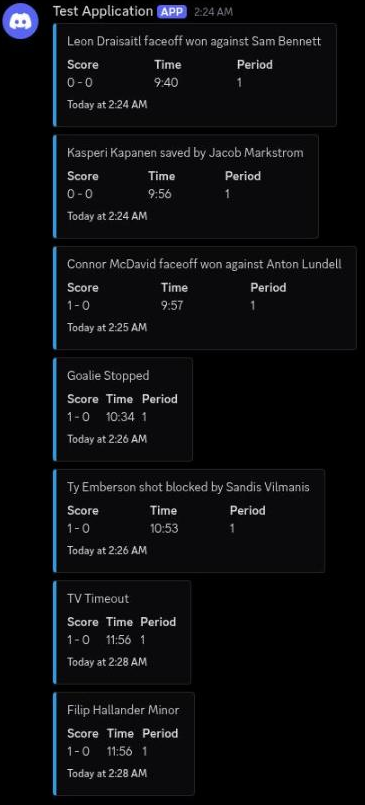
Live Play by Play - Per-game channel that receives a new embed for every play as the game progresses. - Scoring plays are titled and highlighted; ordinary plays post as plain embeds. - Each embed carries the down and distance, a one-line description, and the score, clock and period. - Plays arrive in order, so the channel reads as a running commentary of the game. Game Hub - Pinned overview embed for a tracked game, updated in place rather than reposted. - Score line shows both teams with their records underneath. - Game Info section carries quarter, clock, status and venue. - Members discuss the game in the same channel, so the hub and the conversation share one place. Standings - Division standings pulled per conference, split into one embed per conference. - Each division is its own field with teams ranked and their records. - Playoff positions are marked, so the cut line is visible at a glance. - Refreshed on demand rather than on a schedule. Prediction Poll - Pre-game poll posted into the game channel with one button per team. - Buttons record the vote and the embed tallies the split. - Runs alongside the play-by-play so predictions can be compared against the result afterwards. Onboarding - Welcome flow that asks a new member for their favourite teams. - Sport is chosen from a button row, then the team from a select menu for that sport. - Selection is confirmed in a follow-up embed. - Saved preferences decide which games get a channel and which notifications the member receives.
Music Player
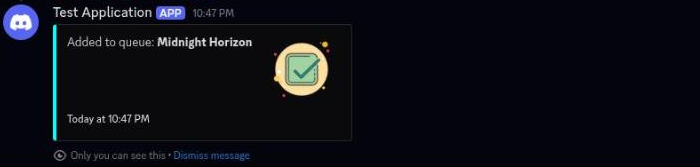
Play Request - /play takes a query or a URL and replies with what it resolved to before playback starts. - The confirmation names the track, the artist and the requester, so a shared channel shows whose request is playing. - Playback joins the member's current voice channel; requesting from outside a voice channel is rejected first. Now Playing - The control panel the bot keeps pinned: title, artist, and the track's own artwork rendered into a card. - Queue depth, volume, and play/pause state sit in one row of fields; active filters are listed underneath. - The card is drawn by the bot with node-canvas for every track, using the artwork's own blurred backdrop behind a circular cover, rather than posting the raw album image. - Buttons cover back, pause, skip, loop and volume, with an effects select menu underneath and an edit-effects button beside them. Queue - /queue paginates the queue, with the current track held above the list rather than mixed into it. - Each entry carries its length, and the requester is shown for tracks someone else added. - Page, track count, and total runtime are in the fields; the page controls sit below the embed. Effect Applied - Effects are applied to the live player through Lavalink's filter chain rather than by restarting the track. - The confirmation names the effect and its setting, so it is clear what changed and by whom. - Effects survive track changes until they are turned off, which is why the panel lists them as active state rather than as a one-off action. Visualizer - /visualizer posts the current track's card on its own at full size, without the control panel around it. - The same node-canvas render that backs the panel, at 1400x450, with the blurred artwork backdrop and circular cover. - Useful for a channel that only wants the artwork, or for grabbing the card to share elsewhere.
Ticket Desk
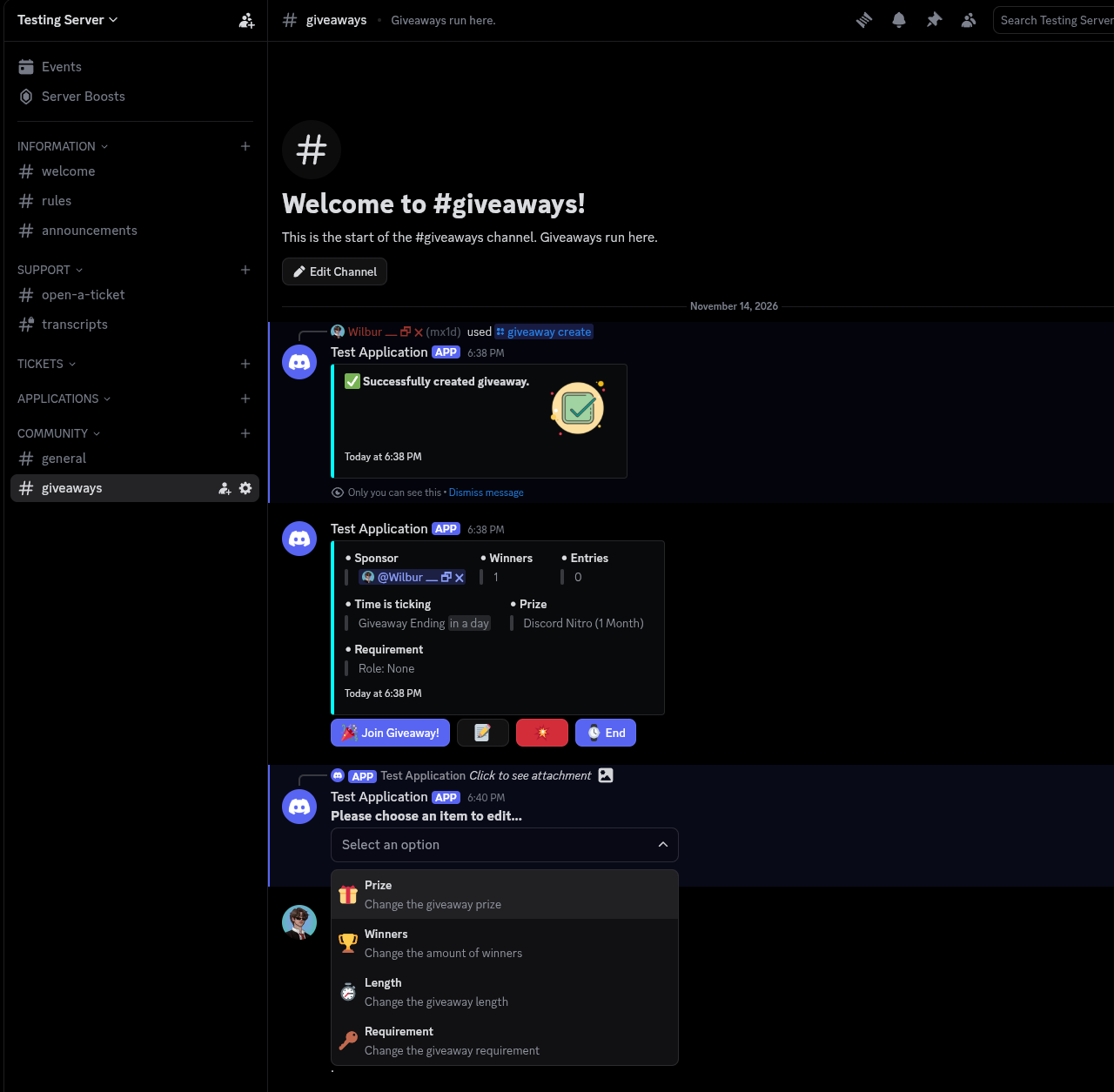
Embed Editor - Modal editor for the ticket embed, opened from the field buttons on the preview message. - One input per embed part: title, description, colour, footer text, thumbnail URL and author name. - The description is a paragraph input; the rest are single-line. - Submitting a field rebuilds the embed and edits the preview message in place. Embed Editor Result - The preview message after the colour and footer fields were submitted. - Colour is applied to the embed's left border, and the footer text replaces the previous one. - The field buttons stay attached so another part of the embed can be edited next. - Each save replies with a confirmation that only the editor sees. Ticket Panel - The panel posted by /panel: an embed with the title, the instruction line and an Average Response Time field. - A select menu below the embed is built from the categories in the config, with each category's emoji and description. - Picking a category opens a modal with that category's questions, then creates a private channel named ticket-<n>. - The new channel hides itself from @everyone, allows the opener and the support role, and pings both. - The response time field reads N/A until the first staff reply has been recorded. Ticket Opened - A ticket channel created from the Support category, with the opener and the support role pinged. - The embed repeats the category's questions with the answers the opener typed into the modal. - Close and Close with Reason buttons sit under the embed for staff. - Closing generates an HTML transcript, posts it to the transcripts channel with a summary embed, DMs it to the opener and deletes the channel after five seconds. Giveaway - A giveaway embed posted by /giveaway create with the sponsor, winner count, entry count, end time, prize and role requirement. - Entries is a live count: the Join Giveaway button adds or removes the clicker and rewrites the field on the message. - The pencil and explosion buttons edit or cancel the giveaway, and End draws the winners immediately. - Giveaways are stored in MySQL, so an end time survives a bot restart. Response Time - The same panel after staff replies have been recorded, with the average response time filled in. - Every non-opener message in a ticket channel stores the time since the ticket was opened. - The average of those rows is written back into every stored panel message, so the number on the panel is current.
Ban Sync
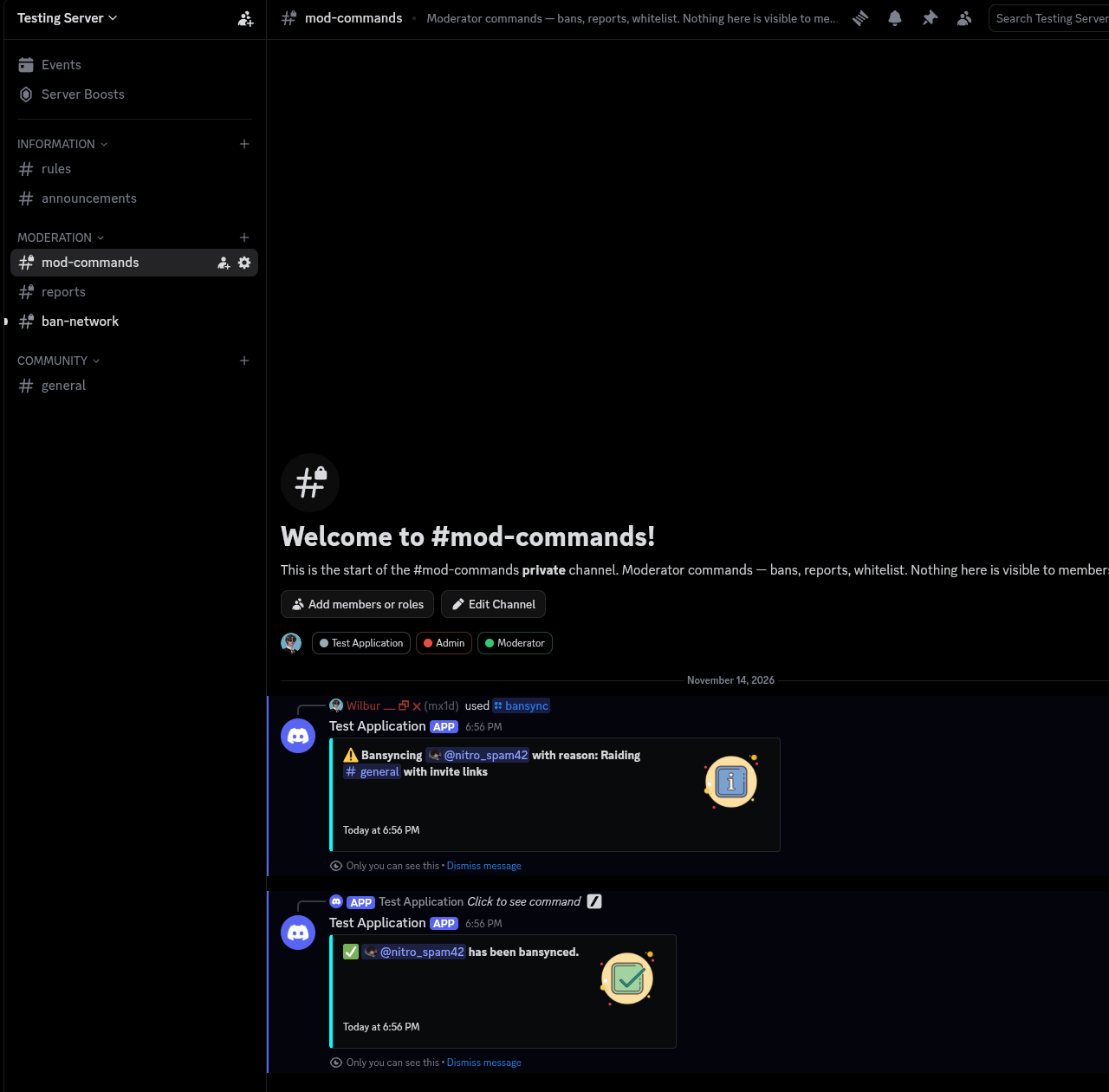
Ban Sync Confirmation - /bansync user reason warns first, then acts: an ephemeral embed names the user and the reason before anything is sent to the network. - The ban is applied in every whitelisted server that has bansync enabled, and a Ban embed is posted to each server's bansync channel. - A second ephemeral embed confirms the user has been bansynced. - Refusals are ephemeral too: not authorized, or the user is already banned with a reason shown. Network Ban Broadcast - The Ban embed a partner server receives: the user, the reason and a timestamp. - Unbans travel the same path with an Unban embed, so a lifted ban is lifted everywhere. - Both embeds are built from templates in the config, with the user and reason substituted in. - Nothing is posted by hand — the broadcast is the command's side effect. Punishment History - /punishments user returns every stored punishment for that user as a numbered list. - Each line carries the type, the date as a Discord timestamp and the moderator who issued it. - Records come from the bot's own ban, kick and mute commands, so the list does not depend on the audit log. - Over 2000 characters the list is sent as a punishments.txt attachment instead of an embed. Report Modal - /report user opens a modal titled Report User with two paragraph inputs: the reason and the evidence. - Both inputs are required before the report can be submitted. - The report is written to the reports channel with the user, the reporter, the reason and the evidence. - The reporter gets an ephemeral confirmation telling them to keep DMs open for the outcome. Report Review - The report as staff see it, with Accept Report and Deny Report buttons underneath. - Accepting or denying opens a modal for optional comments. - The original embed is recoloured green or red, the buttons are removed, and Status, Moderator and Comments fields are appended. - The reporter is DMed the outcome, and an accepted report bans the user across the network. Server Whitelist - /whitelist-server and /unwhitelist-server take a server ID and are restricted to the configured owners. - Whitelisting twice is reported back as already whitelisted rather than silently ignored. - /bansync-settings enable sets the channel that receives ban embeds and reports how many existing bans it will push. - Disabling bansync also clears the channel, so the server stops receiving broadcasts without leaving the whitelist.

Voice Recorder
Recording Started - The recorder-control channel, with the bot already sitting in Session A alongside the members. - /record joins the caller's voice channel and starts capturing audio from it. - The bot confirms privately, so the confirmation is only visible to the person who ran the command. - Recording continues until /finish is run, up to a 720 minute cap. Bot In Voice - The voice channel with the recorder present as a fifth member, alongside the people being recorded. - The bot joins undeafened, so it hears the whole channel rather than only members who address it. - Members joining and leaving mid-session are captured as part of the same recording. Recording Finished - /finish stops the capture and ffmpeg encodes the session to a single mp3. - The file is written to ./finished/ with a timestamp filename and posted back as an attachment. - Duration and size follow the length of the call; the 92 minute session here encodes to roughly 84 MB. - /save uploads the most recent recording without stopping an active one. Cooldown - Per-user cooldown enforced with the bot's only embed, a red cooldown notice carrying the time the command frees up again. - The cooldown applies per user, not per channel, so one person recording does not block anyone else. - Running /record outside a voice channel is rejected before the cooldown is consumed.
Server Economy
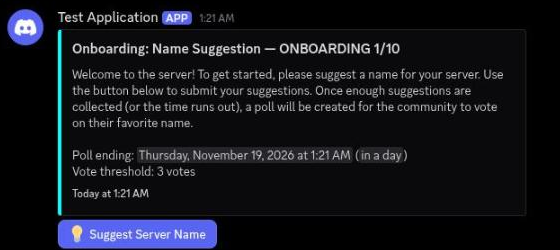
Onboarding - Talevin's welcome message explains the premise: the whole server plays one collective Minecraft server owner and every vote shapes the story. - Onboarding runs as ten numbered polls covering name, theme, style, difficulty, financial planning, side job, PvP, monetization, age group and completion. - The name suggestion embed lists the poll ending time and the vote threshold a suggestion needs to enter the name poll. Daily Poll - The post-launch poll embed carries the server name, day counter, phase marker and an AI comment on the previous day's choices. - A Metrics Snapshot field lists server metrics, player count and daily revenue; Server Stats lists bank balance, computer, internet and hosting. - Further fields cover active contracts, upcoming monthly expenses, the AI-generated question, lettered options, the 24-hour poll ending and the vote threshold. - Each option is a vote button with a live count, alongside Research Sprint, Abstain and Shop. - A vote tracking embed keeps a running total against the threshold. Loan and Bankruptcy - The loan payment embed reports the monthly amount processed and the remaining balance. - When the balance drops below zero the server enters bankruptcy and the Bankruptcy Options embed lists the recovery options not yet used: asking family, taking or extending a loan, or running a donation event. - Each recovery option is a vote button with a live count; exhausting all of them posts a Server Shutdown embed instead. - A donation received embed shows community income while the balance is low. Shop - The Shop Setup embed lists computer, internet and hosting tiers with prices and marks the current tier. - Internet tiers show speed, latency and stability percentages; hosting tiers show player limit and downtime chance. - Changing a plan takes effect at the next monthly billing cycle, and a Shop Purchase Successful embed confirms the winning tier. Side Job - The side job income embed is an AI-written shift story for the chosen job, ending with the amount earned and the bank balance before and after. - A promotion embed tells the story of the promotion and states the new daily income. - A termination embed ends the job with a reason and notes the delay before reapplying. Game Over - At day 365 the run ends with a summary embed: day reached, balance, players, daily revenue, decisions made and the health, mood and engagement metrics. - Final Equipment lists the computer, internet and hosting tiers held at the end. - Recent Decisions recaps the last choices, then an AI debrief covers what went well, what went wrong or risky, and three things to do differently next run.
Deal Hunter
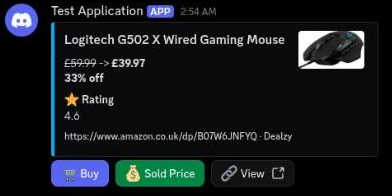
Deal Card - A scraped Amazon listing rendered as a deal card: ~~was~~ -> now price, percentage off and the product image. - Seller line and coupon line are scraped separately and shown only when the listing has them. - eBay median with listing count is attached as a comparison field, plus the ASIN and marketplace. - Sold Price and View buttons resolve from the persisted deal row. Control Panel - Single hub embed posted once per server; every feature is reachable from its buttons. - Covers tracked items, tracking a new product, how deal finding works, settings and help. - Footer tips rotate through the bot's usage guidance. Price History - Alert fires when a tracked price drops well below its recent average, with the drop percentage quoted. - The embed carries a 90-day price chart with the 30-day average and the eBay sold median drawn in. - Fields repeat the current, average and list price, the eBay median and when the check ran. - Checks are scheduled roughly every 10 minutes per tracked item. Tracked Items - One embed lists every tracked product with its status flag, current price, target rule and marketplace. - Targets are either a fixed price or a percentage below the eBay median, shown per row. - Pause and resume set the row's flag without deleting its price history. - A select menu hands each item's management actions, and a Check now button runs an out-of-band sweep. Brand Snipe Alert - Brand subscriptions watch several marketplaces for listed products under a target discount. - When a match clears the rule, the subscriber is pinged with the Amazon price versus the eBay median and the percentage gap. - The alert restates the subscribed rule so the reason for the ping is visible. Worker Status - Operations view over the scheduler: uptime, gateway latency and database pool usage. - The browser worker pool is listed per worker with its current job and idle state. - Sweep rounds report round and page position, products processed and deals found, with the queue depth behind them. - Proxy pool health and request timing percentiles p50/p95, retry rate surface the rate limiting and rotation layer. - Round hiccups such as a 503 are logged inline with the retry that recovered them.
Restock Monitor
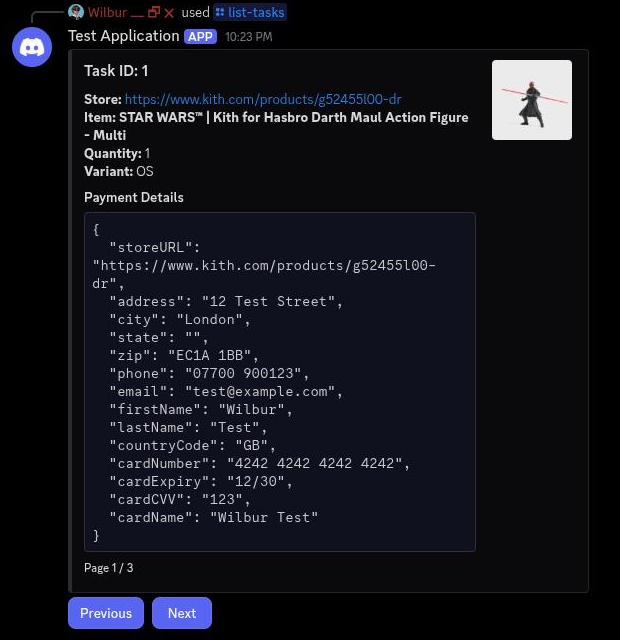
Monitor Tasks - Per-task monitor card: store, product, watched variants, poll interval and region in one embed. - Live health line reports the last cycle time and how many products are cached for the store. - Created date, restock hits surfaced and rate-limit status are tracked per task. - Pause and Delete buttons manage the task without touching the others; Previous/Next paginate the list. Restock Hit - Restock notification raised the moment a watched product flips back in stock. - Carries the exact variant and price, the store, and the detection timestamp with relative time. - eBay listed and sold averages are normalised against the listing for a resale read, with estimated profit after fees. - Task id, detection latency and the sizes that came back live are shown as fields. New Drop - New-release detection posts each variant of a drop with its price as it appears on the storefront. - The eBay sold average is attached so the drop can be judged on arrival. - Detection time and the owning task are recorded on the card. Monitor Configuration - Global configuration view applied to every running task on the next cycle. - Watched stores, tracked keywords, poll cadence normal and turbo, page size and region are listed in one place. - Rate limiting is explicit: requests per second per store with backoff on 429s, over a residential proxy pool with rotation counts. - Alerts are routed per type to their own Discord channels. Event Log - Rolling monitor log: every poll cycle, detection, price change and error with its timestamp. - Detections log the task, product, store and store-to-embed latency. - Rate-limit responses show the backoff applied and the proxy that was rotated in. - Cycle summaries report store count, cached product count and duration; a 24-hour rollup tracks cycles, detections, average latency and recovered errors.
Horse Racing
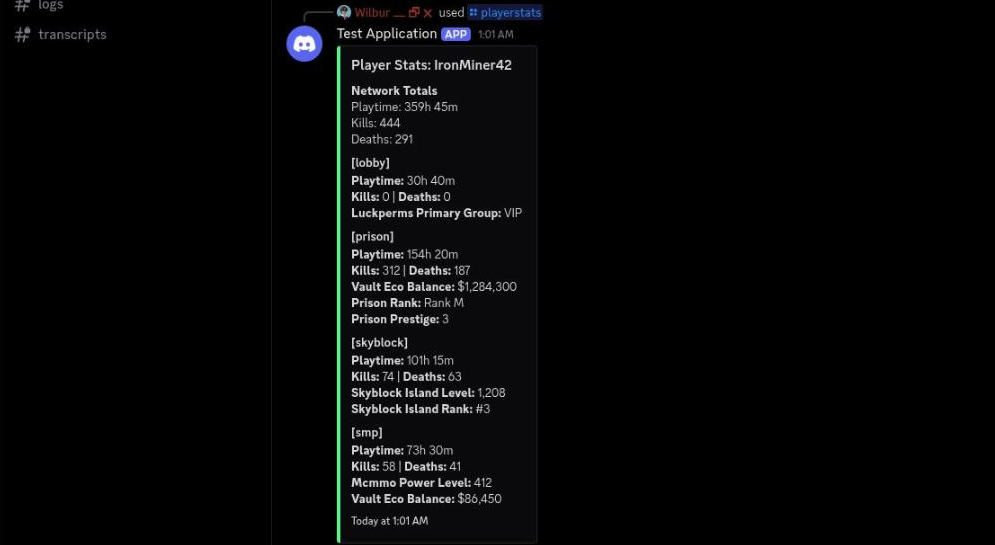
Player Stats - Cross-server totals for one player, aggregated from every server on the network. - Network Totals block carries playtime, kills and deaths summed across all servers. - Each server is its own field with that server's playtime, kills, deaths and rank. - Read directly from the game servers, so the numbers match what the player sees in game. Server Stats - Live status panel covering every server on the network at once. - Each server is a field with online state, player count, TPS and memory usage against its allocation. - Offline servers are shown as offline rather than hidden, so a dead server is obvious. - Posted as a persistent panel and updated in place. Leaderboard - Ranked list of players across the network. - Each entry carries rank, level and XP progress toward the next level. - Ordering is by XP, so the leaderboard reflects current progression rather than lifetime totals. Verification - Verification gate that ties a Discord account to a Minecraft account. - A single Verify button is posted into the verification channel. - Pressing it grants the verified role and records the link, which the stats commands then use. Tebex Role Grant - Store purchases are matched back to a Discord account through the transaction ID. - Running the link command with a Tebex transaction ID pulls the purchase and grants the matching roles. - The confirmation lists every role granted, so the member can see what the purchase unlocked.

Party Games
Ticket Panel - The create-ticket panel embed with the network footer and play addresses for Java and Bedrock. - A category dropdown covers questions, grief reports, player reports, store issues, bugs, cosmetic purchases, admin requests and other issues; custom role tickets come from the token shop and more info tickets from /new, making ten ticket types in total. - Opening a ticket creates a channel named after the user and the category and asks the questions stored for that type. Ticket Opened - The ticket channel sends the opener a question embed per stored question and collects answers one at a time, deleting each answer after reading. - Unanswered tickets close on a five minute timeout with a notice to the opener. - The answers are compiled into one pinned embed for staff with a question and answer list, plus a request for screenshots on bug and cosmetic tickets. - Claiming appends the claiming staff member to the embed; closing posts the reason and the transcript location to the logs. Prestige - The prestige command confirms the target member and level; prestige above level 1 grants a token. - The level command shows rank, level, current xp and the xp still needed for the next level. - The tokens command reports a member's token balance for the perk shop. Giveaway - The giveaway message announces the prize with a green embed, the reaction instruction, the host and the drawing time as a relative timestamp. - Participants join by reacting with 🎉; the footer shows the winner count. - When the timer ends, winners are drawn from valid entries and announced in the channel.